
Text Watermark vs Logo Watermark: Which Is Better? Best Position, Opacity and Size Settings
Published on 27 Oct 2026
Not sure whether to use your name or your logo as a watermark? This guide compares both options and shows the best position, opacity, size and rotation settings for every kind of photo.
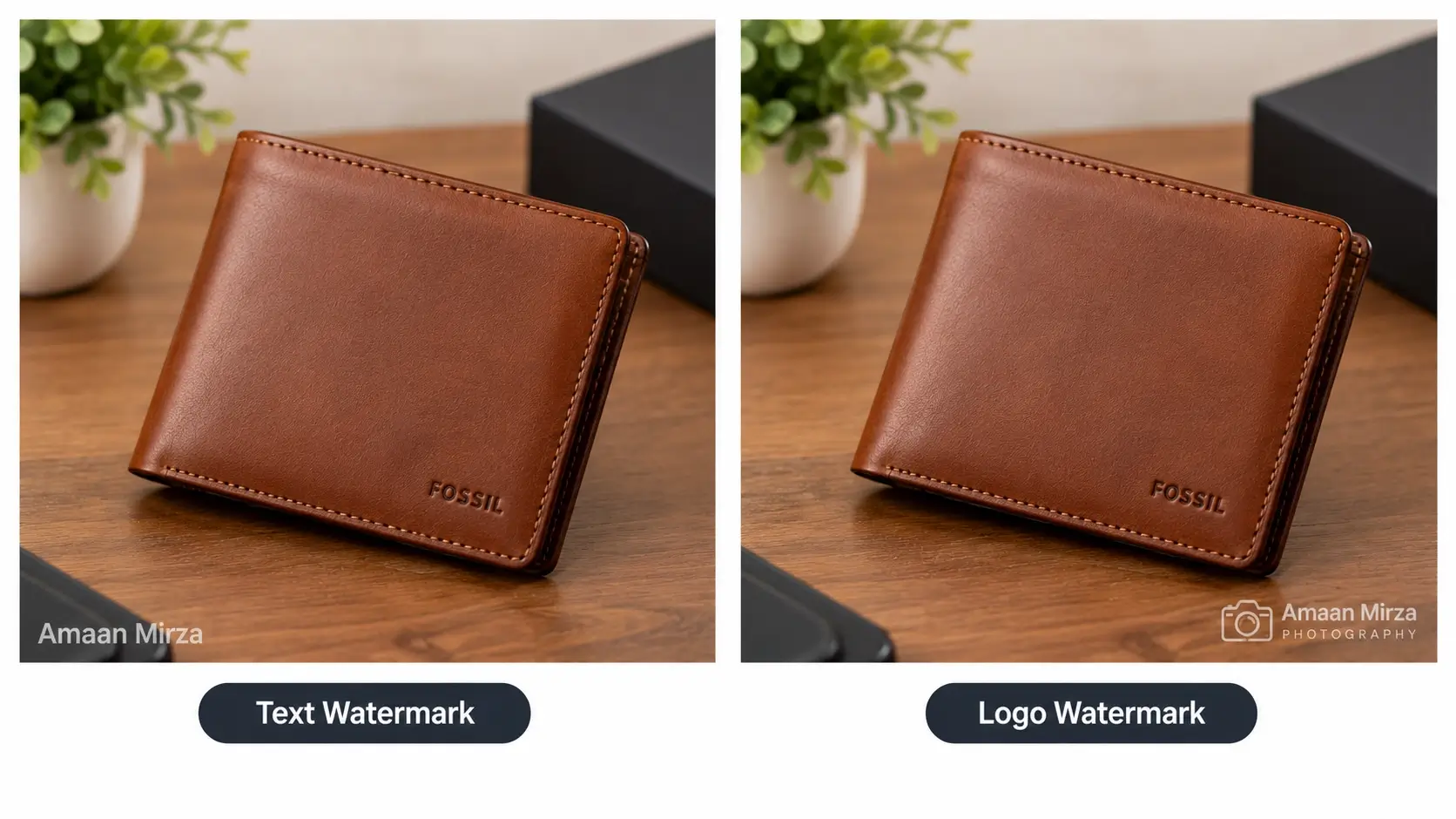
Choosing a watermark sounds simple until you actually do it. Should you type your name or upload your logo? Where should it go? How transparent should it be? Too strong and it ruins the photo. Too weak and nobody notices it, or someone crops it out in two seconds.
The truth is that there is no single best watermark for everyone. The right choice depends on what you shoot, where you share it and how much protection you need. This guide compares text and logo watermarks, shows you when to use each, and gives you practical settings for position, opacity, size and rotation that you can try straight away with our free bulk watermark adder.
What makes a good watermark?
Before comparing the two types, it helps to know what you are trying to achieve. A good watermark does four things.
- It is noticeable. People should be able to see it without looking for it.
- It does not distract. The photo should still be the star.
- It is hard to remove. It should not sit in a spot that can be cropped away in a second or erased easily.
- It represents your brand. It should help people remember and find you.
Every setting you choose is a trade-off between these goals. More visibility means more protection but also more distraction. Keep this balance in mind as you read.
Text watermarks: pros and cons
A text watermark is simply words placed on your image: your name, your brand, your website, your social media handle, or a word such as "SAMPLE" or "PREVIEW".
Advantages of text watermarks
- Quick to create. You do not need a design file. Type the text and you are done.
- Clear and readable. People immediately understand who made the photo and where to find you, especially if you use a handle like @yourname or a web address.
- Flexible. You can change the wording whenever you need to, for example to add the year or a campaign name.
- Great for previews. Words such as "PROOF" or "SAMPLE" make it clear that an image is not the final version.
Disadvantages of text watermarks
- Less distinctive. Plain text looks generic and does not build visual brand recognition the way a logo does.
- Font limitations. You are limited to the fonts available in the tool, so the text may not match your brand style.
- Can look amateur if poorly set. Text that is too large, too bright or poorly placed looks like a sticker on the photo.
Logo watermarks: pros and cons
A logo watermark uses an image file, usually a PNG with a transparent background, that you upload and place on every photo.
Advantages of logo watermarks
- Looks professional. A well-designed logo gives your photos a polished, branded look.
- Builds recognition. People start to associate the logo with your quality over time.
- Matches your brand perfectly. Your colors, fonts and style are exactly as on your packaging and website.
- Harder to copy and imitate. A distinctive logo is more difficult to fake or recreate than a line of plain text.
Disadvantages of logo watermarks
- You need a good file. A low-resolution logo, or one with a solid white background, looks bad on photos.
- Can be unclear when small. A detailed logo shrinks poorly. At small sizes, fine lines and tiny text become unreadable.
- Might not tell people where to find you. A symbol alone may not include your name, website or handle.
Text or logo: how to choose
Use this quick guide to decide.
- You have no logo yet: use text. A clean name or handle is better than a badly made logo.
- You have a professional logo: use the logo, especially for product photos, portfolios and brand pages.
- You want people to find you online: use text with your handle or website, or a logo that includes your name.
- You are sending previews or proofs: use large, semi-transparent text such as "PROOF" or "SAMPLE".
- You post on social media daily: use a small logo or handle in a corner, since images are viewed small.
- You sell high-value images: use a larger central watermark on previews, and share clean files only after payment.
Many photographers and sellers use both. For example, they might use a logo on website images and a text watermark with a web address on social media posts. With a bulk tool you can create each version in minutes by processing the same photos twice with different settings.
The best position for your watermark
The Bulk Watermark Adder gives you nine positions in a grid: top left, top center, top right, middle left, center, middle right, bottom left, bottom center and bottom right. Here is when each works best.
Bottom right or bottom left
This is the most popular choice for good reasons. It looks natural, because viewers are used to seeing signatures there, and it rarely covers the main subject. The downside is that it is the easiest area to crop out. Use it for everyday sharing, portfolios and social media.
Bottom center
A centered bottom watermark looks balanced and elegant, which makes it a good fit for wide landscape photos, wedding images and travel photography. It is a bit harder to crop without affecting the composition.
Top corners
Choose the top left or top right when the bottom of your photo contains important details, such as a product, a text caption or a person's hands. Top corners are also useful for images that will have a caption or button added below.
Middle left and middle right
Side placement is less common, which makes it unusual and harder to ignore. Use it for portrait photos where the corners are busy, or to create a distinct style.
Center
This is the strongest protection, because cropping it out would ruin the photo. Combine it with low opacity so the image remains pleasant to look at. It is ideal for client proofs, stock previews and high-value images.
A practical tip: place your watermark over a part of the picture that has some detail or texture rather than a perfectly plain sky or wall. Watermarks on plain areas are much easier to clean up with editing software.
Opacity: how visible should it be?
Opacity is the setting most people get wrong. The default in the tool is 60 percent, which is a sensible starting point. Adjust it based on the situation.
- 20 to 35 percent: very subtle. Good for large centered watermarks on previews, where you want protection without ruining the view.
- 40 to 60 percent: balanced. Best for most portfolio, product and website images.
- 60 to 80 percent: strong. Good for small corner watermarks on social media, where images are seen at a small size.
- 80 to 100 percent: very bold. Usually too heavy, unless the watermark is tiny or you need maximum visibility.
The right opacity also depends on the image. A busy photo hides faint watermarks, so use higher opacity. A simple, clean photo shows even subtle watermarks easily, so use lower opacity.
Size: how large should it be?
For logos, the tool sets the size as a percentage of the image width. The default is 20 percent. Here are some guidelines.
- 8 to 12 percent: very small, for elegant, minimal branding on art or luxury photos.
- 12 to 20 percent: a standard size for most corner logos.
- 25 to 40 percent: a large size, for previews and proofs.
- 40 percent and above: usually only for central protection watermarks with low opacity.
For text, the default font size is 36 pixels. Remember that the right size depends on the resolution of your photo. A 36 pixel text on a small web image looks big, but on a 6000 pixel wide photo from a camera, it looks tiny. Always check the live preview, and if you work with very large images, increase the font size.
Rotation: when to tilt your watermark
Rotation lets you angle the watermark. For most corner watermarks, leave it at zero degrees. A straight watermark looks neat and is easy to read.
Rotation is more useful for central watermarks. A diagonal angle, such as minus 20 to minus 35 degrees, looks intentional and is harder to crop. It also helps fill the image area, which is why you often see it on previews and stock photos.
Color: choosing text that contrasts
Text color must contrast with the background where it appears.
- White text works on dark photos, shadows, night shots and rich colors.
- Black or dark gray text works on bright, light backgrounds, such as white product backdrops or snow.
- Bright brand colors can work if the photo has a neutral background, but test them carefully, since colored text can clash with the picture.
If your photos contain both light and dark backgrounds, you will not find one color that works perfectly everywhere. That brings us to an important practical tip.
Handling mixed photos in one batch
Bulk tools apply identical settings to every image, which is a major advantage for consistency. But it also means that a setting that is perfect for one photo may not be perfect for another. Three situations come up often.
Light and dark photos together
Split them into two batches. Use a white watermark for the dark group and a dark watermark for the light group. This takes an extra minute and removes the need to fix images one at a time.
Portrait and landscape photos together
Because logo size is based on image width, a vertical photo and a horizontal photo will show a watermark of different visual size. Group them by orientation and adjust the size for each.
Very different resolutions
If you mix small web images with huge camera originals, text size will look different on each. Process similar-sized images together.
Sorting your photos before uploading, using different folders, makes this easy, especially with the folder upload option.
How to prepare a great logo for watermarking
If you use a logo watermark, the quality of your file matters more than any setting.
- Use a transparent PNG. This removes the white box around your logo.
- Use a high resolution. Aim for a width of at least 500 to 1000 pixels so it stays sharp when placed on large photos.
- Keep it simple. Thin lines and tiny text disappear when the logo is reduced. A simplified version of your logo works better.
- Prepare light and dark versions. A white version for dark photos and a dark version for bright photos covers almost every situation.
- Include breathing space. Do not crop the logo too tightly. A small margin around it keeps it from touching the edge of the photo.
Step by step: applying your chosen settings
Once you have decided on your style, applying it to a whole folder takes only a few minutes.
- Open the free bulk watermark tool and upload your photos or a complete folder.
- Choose text or logo mode.
- Set size, opacity, position, rotation and, for text, color.
- Check the live preview and adjust.
- Click Apply Watermark to All Images.
- Download the results individually or as a ZIP.
For a more detailed walkthrough with screenshots-style explanations, read our full guide on how to add a watermark to multiple photos at once.
After the watermark: optimize your images
A great watermark means little if your pages load slowly. Large image files are one of the most common reasons websites feel sluggish. After watermarking, convert your photos to WebP with the Image to WebP converter to reduce file size while keeping good visual quality. If you have PDF documents with images or brochures that you want to reuse as pictures, the PDF to WebP converter can turn their pages into lightweight images, which you can then watermark as well.
Example settings you can copy
Wedding or portrait photographer
Small text or logo, bottom center or bottom right, 12 percent logo size, opacity 50 percent, no rotation. Elegant and unobtrusive.
Online clothing store
Logo in the top right or bottom corner, 15 percent size, opacity 55 percent. Keep it away from the garment details and the model's face.
Client proof gallery
Large central text or logo, 30 to 40 percent size, opacity 30 to 40 percent, rotation about minus 25 degrees. Clear protection, while still letting the client judge the photos.
Instagram creator
Handle in text, bottom corner, white color, opacity 70 percent, no rotation. Simple, readable on mobile.
Real estate agent
Agency logo in the bottom left, 15 to 18 percent size, opacity 60 percent.
Selling templates or digital designs
Large diagonal text such as "PREVIEW", opacity 25 to 35 percent, rotation minus 30 degrees, in the center.
Common watermark mistakes to avoid
- Making it too bold. A watermark should never fight with the subject of the photo.
- Making it too faint. If you cannot see it on a phone screen in daylight, it is not working.
- Using a poor-quality logo. Blurry or boxed logos look unprofessional.
- Always using the extreme corner. It is the easiest to crop. Move it slightly inward, or choose a more difficult position for important images.
- Ignoring the background. A white watermark on a bright sky disappears. Always test on your real photos.
- Using different styles every time. Consistency builds brand recognition.
- Skipping the preview. The preview is free. Use it.
- Overwriting originals. Always keep clean copies in a separate folder.
Frequently asked questions
Is a text watermark or a logo watermark better?
Neither is better in every case. Logos look more professional and build recognition, while text is faster and can clearly show your name or website. Use the one that fits your situation, or use both for different platforms.
What is the best opacity for a watermark?
Between 40 and 60 percent works for most images. Use lower values for large central watermarks and higher values for small corner watermarks on social media.
Where is the best place for a watermark?
For everyday use, the bottom right or bottom left corner. For stronger protection, use the center, ideally slightly rotated and with lower opacity.
Can I use my own logo in the bulk watermark tool?
Yes. Upload your logo image, set its size and opacity, choose a position and apply it to all photos. A transparent PNG gives the best result.
Can I add both text and a logo?
The tool applies one watermark type at a time. To use both, run your photos through twice: first with the logo, then with the text, using your watermarked results as the new input and placing each in a different position.
Will watermarks hurt my website's SEO?
A well-designed watermark does not directly hurt search rankings. What matters more is page speed and image quality, so optimize your images after watermarking, for example by converting them to WebP.
Can people remove my watermark?
Sometimes. Small watermarks on plain areas are the easiest to remove. Place yours over detailed areas, use a reasonable size, and share smaller, lower-resolution versions publicly.
Do I need to install software?
No. The tool runs in your web browser on desktop or mobile, with no signup, and your images are processed on your own device.
Final thoughts
The best watermark is the one that protects your work while staying out of its way. If you are just starting, a clean text watermark with your name or handle is perfectly fine. As your brand grows, a well-made logo gives your photos a more professional and memorable look. Whatever you choose, keep it consistent, semi-transparent, and always check the preview on a real photo.
Ready to test your settings? Open the free Bulk Watermark Adder, upload a few sample photos and try different positions and opacity levels until it feels right. If you sell products online, our guide on protecting product photos with a watermark will help you plan the whole workflow, and you can find more tips on the Instant Convert Tools blog.