
WebP vs JPG vs PNG: Which Image Format Should You Use in 2026?
Published on 27 Oct 2026
WebP, JPG or PNG? Compare file size, quality, transparency and compatibility, and find out which image format is best for websites, online stores, social media and print.
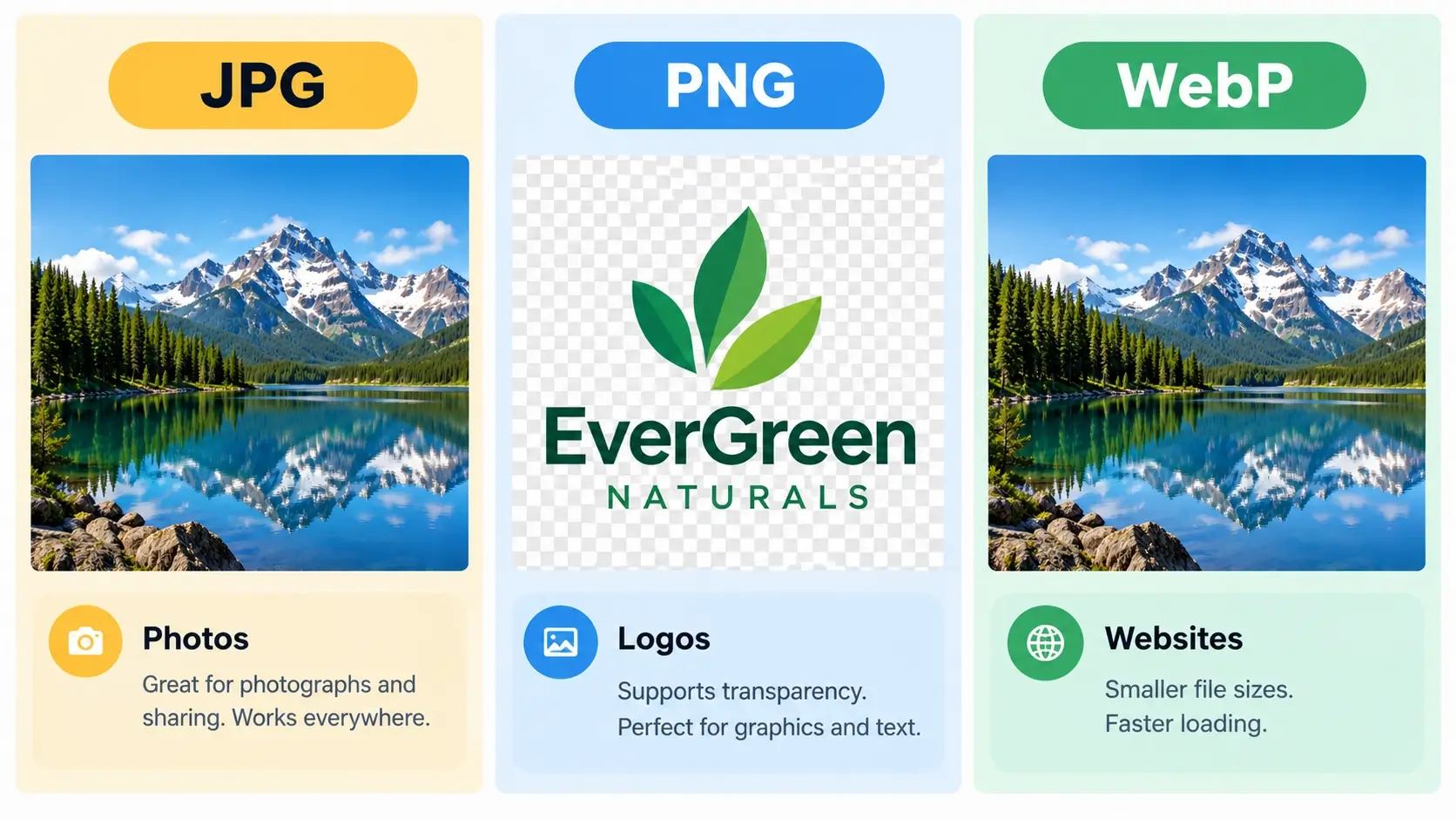
Every time you save, upload or share a picture, you quietly make a choice: JPG, PNG or WebP? Most people never think about it until something goes wrong. The website feels slow, the logo has an ugly white box around it, the photo looks blocky, or an upload gets rejected.
Each format was built for a different job, and each has strengths and weaknesses. This guide explains the differences between WebP, JPG and PNG in plain language, shows when to use each one, and gives you a simple decision guide. If you decide that WebP suits your website, you can convert your images for free with our Image to WebP converter.
The short answer
- Use WebP for images on your own website or blog, where you want small files and good quality, including transparent images.
- Use JPG for photos that need to work everywhere: social media uploads, email, printing and sharing with other people.
- Use PNG for graphics that need sharp edges, text or transparency and for files you plan to edit again.
Now let us look at why.
What is JPG (JPEG)?
JPG, also written JPEG, has been the standard format for photos for decades. It uses lossy compression, which means it shrinks files by removing some detail that the human eye does not notice easily. You can choose how strong the compression is. Heavy compression gives small files but visible blocky artifacts, while light compression keeps good quality at a larger size.
Strengths of JPG
- Works practically everywhere: every phone, camera, browser, editor, printer and social platform.
- Great for photographs with many colors and gradients.
- Small enough for easy sharing and email.
Weaknesses of JPG
- No transparency. Backgrounds are always solid.
- Quality drops each time you edit and re-save it.
- Poor for sharp text, logos and line art, which can look fuzzy around edges.
- Files are usually larger than comparable WebP images.
What is PNG?
PNG uses lossless compression, so it keeps every pixel exactly as it is. That makes it ideal for graphics, screenshots and anything with sharp edges or text. PNG also supports transparency, which is why logos and cut-out product images are often saved as PNG.
Strengths of PNG
- Lossless quality, so no detail is lost when saving.
- Supports transparent backgrounds.
- Excellent for logos, icons, screenshots, charts and text-heavy images.
- Works well in editing workflows because repeated saving does not degrade the image.
Weaknesses of PNG
- Large files, especially for photographs.
- Not ideal for web pages with many photos, because the weight slows loading.
What is WebP?
WebP is a newer format developed by Google specifically for the web. It combines features of both JPG and PNG in one format. It can compress lossy, like JPG, or lossless, like PNG, it supports transparency, and it can even store animation, replacing GIFs. In Google's published comparisons, WebP files are often smaller than equivalent JPG or PNG files, commonly by around a quarter or more, depending on the image.
Strengths of WebP
- Smaller files at similar visual quality, which means faster pages.
- Supports both lossy and lossless compression.
- Supports transparency, even with lossy compression.
- Supports animation.
- Supported by all major modern browsers.
Weaknesses of WebP
- Some older software, apps and platforms do not open or accept it.
- Not usually accepted by print shops.
- Many people still do not recognize the format, so sharing files can cause confusion.
WebP vs JPG vs PNG: side-by-side comparison
FeatureJPGPNGWebPCompressionLossyLosslessLossy or losslessFile size (photos)MediumLargeUsually smallestTransparencyNoYesYesAnimationNoNo (standard PNG)YesBest forPhotos, sharingLogos, screenshots, graphicsWebsite imagesCompatibilityUniversalUniversalModern browsers and softwarePrintingGoodGoodOften not acceptedRepeated editingQuality lossNo lossDepends on mode
File size: why it matters
Imagine a product page with ten images. If each image is a 500 KB JPG, the page carries about 5 MB of pictures. If the same images are 500 KB PNG files for photos, it could be much heavier. If you convert them to WebP and save roughly a quarter to a third on each, you might shave more than a megabyte off the page. That is only an illustration, and real savings depend on the image, but it shows why website owners care.
Lighter pages load faster, use less mobile data and feel smoother, especially for visitors on slower connections. We explain the connection between image weight and Google performance metrics in our guide on WebP and SEO.
Quality: which format looks best?
Quality depends on the settings more than on the format name. A well-compressed JPG can look better than a badly compressed WebP, and a lossless WebP can match a PNG pixel for pixel. A few general rules help:
- Photos: JPG and lossy WebP both look good at sensible settings. WebP tends to reach the same look at a smaller size.
- Graphics, text and logos: PNG or lossless WebP keep edges crisp. Lossy compression can create fuzz around fine lines.
- Gradients and skies: heavy compression in any lossy format can create visible banding or blocks. Check the result.
Always compare your converted file against the original before publishing, especially for images with fine detail.
Transparency: logos and cut-out photos
If you need a transparent background, JPG is out. That leaves PNG and WebP. PNG is the classic choice and is accepted by almost everything. WebP offers transparency with usually smaller files, which is helpful for product cut-outs on websites with many images. For a logo that you will use in many places, including design tools and watermarking, keep a PNG master.
For example, when you add a logo to photos with our bulk watermark adder, a PNG logo with a transparent background gives the cleanest result. You can learn more about preparing a logo in our guide on text vs logo watermarks.
Compatibility: where each format works
JPG
It works everywhere: devices, apps, email, print shops and social media. It is the safest choice when you do not know where a file will end up.
PNG
Also works nearly everywhere. Some systems limit file size, and big PNG files can be slow to share, but it is widely accepted.
WebP
All major modern browsers display WebP, and recent versions of many editors and website platforms support it. The trouble appears outside the browser. Some social media apps, marketplaces, email tools, older image viewers and print services may reject it or convert it. Always check what your destination accepts, and keep JPG or PNG copies for those cases.
Which format should you use? A decision guide
For your website or blog
Use WebP for most images. It gives you smaller files and good quality, and browsers support it. If you want to be extra safe, add a JPG or PNG fallback with the picture element.
For an online store
Use WebP on your site for product photos, and keep JPG versions for marketplaces and social channels that prefer them. If you protect your photos with a watermark, apply it first, then convert. Our guide for sellers explains the whole process: protecting product photos with a watermark.
For Instagram, Facebook and WhatsApp
Use JPG, or PNG for graphics. These platforms process your uploads anyway, and JPG is the safest format for them.
For email
Use JPG for photos and PNG for graphics. Some email clients handle WebP poorly.
For printing
Use the highest-quality JPG, PNG or TIFF file your printer accepts. Do not use compressed web copies.
For logos and icons
Use PNG as your master (or SVG for vector logos), and optionally convert a copy to WebP for your website.
For screenshots and tutorials
PNG keeps text sharp. If page weight matters, lossless WebP can reduce the size further.
For photography portfolios
Keep your originals in the best format you have, and use carefully checked WebP or high-quality JPG for display on the web.
For animated images
WebP animation is usually much lighter than GIF, but check where it will be shown, since not every app supports it.
For documents and catalogues
If you want to share a set of images as one file, convert them with the Image to PDF converter. If you have PDF pages you want to show on a website as images, use the PDF to WebP converter.
Common mistakes with image formats
- Saving photos as PNG. This creates huge files without any visible benefit. Use JPG or WebP for photos.
- Saving logos as JPG. You lose transparency and get fuzzy edges. Use PNG or WebP.
- Converting JPG to PNG to "improve quality". Quality that has already been lost does not come back. The file only becomes bigger.
- Editing and re-saving JPGs many times. Each save can lower quality. Keep an original and edit from it.
- Deleting originals after conversion. You may need them later for printing or other platforms.
- Using WebP everywhere without checking. Make sure the platform accepts it before you commit.
- Ignoring image dimensions. An oversized image is slow in any format. Resize first.
How to convert between formats
Converting JPG or PNG to WebP is simple and takes only a few steps. With the free Image to WebP converter, you can upload a single image, several images or a whole folder, convert them in your browser and download the results individually or as a ZIP. The tool accepts PNG, JPG and JPEG, and since the conversion happens on your own device, your pictures are not uploaded to a server.
If you want a detailed walkthrough, read our step-by-step guide on how to convert JPG and PNG to WebP online for free.
A simple two-folder system
The easiest way to avoid format problems is to keep two folders for every project:
- Originals: your highest-quality JPG, PNG or camera files. Never overwrite them.
- Web-ready: resized, watermarked (if needed) and converted WebP copies, plus JPG copies for platforms that need them.
With this habit, you can always return to your originals when a new platform, printer or client needs a different format.
Frequently asked questions
Is WebP better than JPG?
For websites, usually yes, because it gives smaller files at similar quality. For sharing and compatibility, JPG is still the safer choice.
Is WebP better than PNG?
WebP often produces smaller files than PNG and also supports transparency. PNG remains more widely accepted by design and editing tools, so it is a good master format for graphics.
Does WebP lose quality?
It can, if you use lossy compression, in the same way JPG does. WebP also has a lossless mode that preserves all the detail. At sensible settings, the loss is usually hard to notice.
Can I use WebP on Instagram or WhatsApp?
These apps generally work best with JPG or PNG. Keep those formats for social uploads and use WebP for your own website.
Does WebP support transparency?
Yes. WebP supports transparent backgrounds, so you can use it for logos and cut-out product images.
Which format is best for SEO?
No format is an automatic SEO winner. WebP can help by making pages lighter and faster, but correct dimensions, good alt text and relevant content matter just as much.
Should I convert all my old images to WebP?
Start with the largest images on your most important pages, then continue gradually. Always keep the originals.
Can I convert images to WebP for free?
Yes. You can use the free Image to WebP converter with no signup, one file or many at a time.
Final thoughts
There is no single winner among WebP, JPG and PNG, because each one shines in a different situation. WebP is the best choice for most website images thanks to its small size and flexibility. JPG remains the most universal format for photos and sharing. PNG is the dependable choice for sharp graphics, logos and editing. Choose according to where the image will be used, keep your originals safe, and convert only when it makes sense.
Ready to lighten your website images? Open the free Image to WebP converter, convert a folder of JPG or PNG files and compare the file sizes. For more practical guides on images, PDFs and online tools, visit the Instant Convert Tools blog.