
WebP and SEO: Do WebP Images Really Improve Page Speed and Google Rankings?
Published on 27 Oct 2026
Does converting images to WebP help your SEO? Here is an honest look at how WebP affects page speed, Core Web Vitals and Google rankings, plus a practical image optimization checklist.
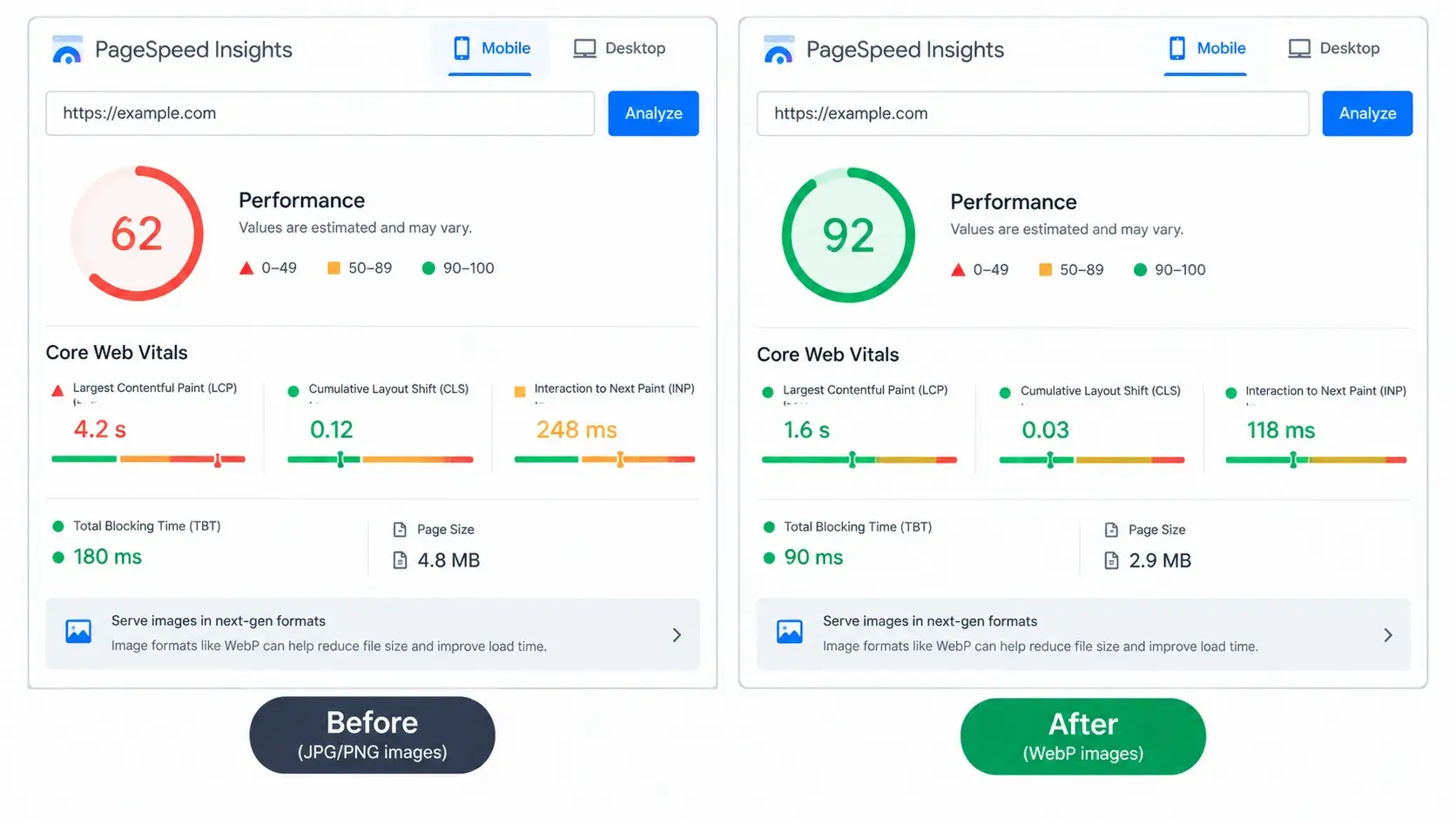
Almost every SEO tool and speed test tells you the same thing: "Serve images in next-gen formats." For most websites, that means converting JPG and PNG files to WebP. But does it actually improve your Google rankings, or is it just another item on a checklist?
The honest answer sits in the middle. WebP is not a magic ranking button, but it can solve a real problem that does affect search performance: heavy images that slow your pages down. In this guide, we look at how WebP and SEO are really connected, which metrics are involved, what to expect, and how to optimize images the right way. When you are ready to start converting, you can use our free Image to WebP converter, which works in your browser with no signup.
What is WebP, in one minute?
WebP is a modern image format designed for the web. It can handle photos (lossy compression), graphics (lossless compression), transparency and animation. Its main selling point is smaller files at similar visual quality compared with older formats like JPG and PNG. If you want the full details of how it compares, see our guide on WebP vs JPG vs PNG.
Smaller files mean pages that load faster, and that is where SEO comes in.
Does WebP directly improve Google rankings?
No, Google does not rank a page higher simply because its images are WebP. There is no "WebP bonus". Rankings are driven mainly by how well your content matches what people search for, by the quality and relevance of your page, by links from other sites and by many other signals.
What WebP can do is improve your page's loading performance, and loading performance is part of how Google evaluates the experience of using a page. So the effect is indirect:
- You convert heavy JPG and PNG files to WebP.
- Your page transfers fewer bytes.
- Images appear sooner, especially on mobile connections.
- Your speed metrics improve.
- Visitors have a better experience and are less likely to leave.
Page speed is generally treated as a lightweight ranking factor. If two pages are otherwise similar in relevance and quality, the faster one may have a small advantage. If your content is weak, no image format will fix it. That is the realistic way to think about WebP and SEO.
Core Web Vitals: where images matter most
Google measures real-world page experience using a set of metrics called Core Web Vitals. Images affect at least two of them directly.
Largest Contentful Paint (LCP)
LCP measures how long it takes for the biggest visible element on the screen to load. On many pages, that element is an image, such as a hero banner, a featured photo on a blog post or a main product image. A very large JPG can delay LCP significantly. Converting that image to a smaller WebP, and sizing it correctly, can bring LCP down. Google generally considers an LCP of around 2.5 seconds or less to be good.
Cumulative Layout Shift (CLS)
CLS measures how much the page layout jumps around while loading. Images without defined dimensions are a common cause: the browser does not know how much space to reserve, so the text jumps down when the picture appears. This is not fixed by WebP itself, but it is fixed by adding width and height attributes, which you should do whenever you update your images.
Interaction to Next Paint (INP)
INP measures how quickly a page responds when users interact with it. Images are not the main factor here, but a page overloaded with huge files can still feel sluggish on weaker phones because the browser is busy decoding and rendering them.
Realistic expectations: how much can WebP save?
The savings vary a lot from image to image. Photos with smooth gradients and a lot of detail behave differently from flat graphics. In general, WebP files are often noticeably smaller than comparable JPG or PNG files, commonly by a quarter or more, according to Google's published comparisons.
As an illustration, imagine a blog post with eight images averaging 400 KB each as JPG. That is around 3.2 MB just for pictures. If WebP saves roughly 25 to 30 percent per image, the page sheds close to 1 MB. That is not a miracle, but on a slow mobile connection, a megabyte is a very noticeable difference.
The biggest wins, however, usually come from fixing the real problem: images that are far larger than they need to be. A 5000-pixel-wide photo displayed in a 800-pixel-wide column wastes data whatever the format. Resizing and converting together delivers the best results.
WebP and Google Images
Image search can be a valuable traffic source, especially for online stores, recipes, travel, design and DIY content. Google can crawl and index WebP images, so using WebP does not stop your pictures from appearing in image search. To help them rank, focus on the basics:
- Descriptive file names. Use handmade-soy-candle-lavender.webp instead of IMG_3021.webp.
- Helpful alt text. Describe what the picture shows in a natural sentence. Do not stuff keywords.
- Relevant surrounding text. Place images near content that explains them.
- Good quality. Sharp, well-lit and properly cropped images perform better and look more trustworthy.
- Crawlable images. Make sure images appear in the page's HTML and are not blocked from crawling.
A practical image optimization checklist
Use this checklist on any page you want to speed up. Format conversion is just one step.
1. Resize images to the size they are displayed at
Check how wide your images appear on the page, and export them at that size, or slightly larger for high-density screens. Do not upload a camera original and let the browser shrink it.
2. Convert to WebP
Batch convert your JPG, JPEG and PNG files with the Image to WebP converter. You can upload files one by one, many at once or a full folder, and then download everything in a ZIP. Keep your originals as backups. For a complete walkthrough, read our guide on how to convert JPG and PNG to WebP.
3. Add watermarks before the final conversion
If your photos need branding, apply the watermark first with the bulk watermark adder, then convert the finished images to WebP. This avoids re-compressing the same files several times.
4. Set width and height attributes
Every image tag should include dimensions so the browser can reserve space and avoid layout shifts.
<img src="hero.webp" alt="Bulk watermark tool on a laptop" width="1200" height="630">
5. Lazy-load images below the fold
Add loading="lazy" to images that appear further down the page, so the browser loads them only when needed. Do not lazy-load your main hero image or the first image people see. That one should load as early as possible, because it is usually your LCP element.
<img src="gallery-3.webp" alt="..." width="800" height="600" loading="lazy">
6. Use responsive images where it makes sense
For larger sites, use srcset and sizes so phones download a smaller version than desktops. This is especially valuable for full-width banners.
7. Provide a fallback if you need one
Almost all modern browsers support WebP. If you need to cover very old software, use the picture element with a JPG or PNG fallback.
8. Write good alt text and file names
This helps accessibility and image search. Describe the image honestly and keep it readable.
9. Use caching and a CDN where possible
Once your images are small, make sure repeat visitors do not need to download them again. Browser caching and a content delivery network help with this.
10. Convert PDF pages and documents that appear on the site
If you display catalogue pages, certificates or brochure pages as images, convert them with the PDF to WebP converter so they do not slow your pages down either.
How to measure whether WebP helped
Do not guess. Measure.
- Test before you change anything. Run your page through Google's PageSpeed Insights and note the scores, the LCP time and the total page size.
- Make your changes. Resize, convert and add dimensions as described above.
- Test again. Compare page weight and LCP on the same page, ideally on mobile settings.
- Check real-user data over time. In Google Search Console, the Core Web Vitals report shows how your pages perform for actual visitors. It takes a few weeks for new data to appear.
- Watch your traffic and engagement. Over the next weeks, see whether bounce rates, time on page or conversions improve.
If the numbers barely change, look at other causes: heavy scripts, slow hosting, large fonts or too many third-party widgets.
WebP for different kinds of websites
Blogs
Featured images and in-article pictures are often the biggest files on a blog page. Converting them to WebP is one of the quickest improvements you can make, particularly on image-heavy posts.
Online stores
Product pages usually have many photos. Lighter images help category pages and product galleries load quickly, which matters when shoppers are on their phones. Many store platforms already serve modern formats automatically, but uploading clean, correctly sized images still helps. If you protect your photos with a watermark, our guide on protecting product photos shows how to combine that with optimization.
Portfolios and photography sites
These sites need quality, so be careful. Use WebP for web display, keep high-resolution originals offline and compare results closely before publishing.
Landing pages
For landing pages, the hero image strongly affects the first impression. Keep it as light as you can, set dimensions and do not lazy-load it.
Service and local business sites
Smaller sites often have a few oversized images from a phone or a designer. Resizing and converting them is a fast, low-cost way to make a site feel more professional.
Common mistakes to avoid
- Converting but not resizing. A huge WebP is still a huge file.
- Lazy-loading the hero image. This can delay LCP instead of improving it.
- Forgetting alt text and file names. You lose accessibility and image search value.
- Compressing too aggressively. Visible blur or artifacts make your site look low quality.
- Deleting originals. You will need them again for editing, printing or other platforms.
- Re-compressing the same image repeatedly. Each lossy pass can reduce quality. Always start from the original.
- Ignoring mobile. Test on a real phone, not only on a desktop browser.
- Expecting instant ranking jumps. Speed improvements support SEO, but rankings change slowly and depend on many factors.
When WebP is not the right choice
- Some platforms and apps still expect JPG or PNG uploads.
- Print shops generally want high-resolution JPG, PNG or TIFF files.
- Email and older software may not handle WebP well.
- Your master archive should remain in the original, highest-quality format.
Use WebP where it works best, which is your website, and keep other formats for the rest.
Frequently asked questions
Does WebP improve SEO?
Indirectly, yes. It can make pages lighter and faster, which supports a better user experience and healthier Core Web Vitals. It does not directly boost rankings by itself.
Does Google index WebP images?
Yes. Google can crawl and index WebP, so your images can still appear in image search. Good file names, alt text and context matter just as much as the format.
Is WebP better than JPG for SEO?
WebP is usually smaller than a comparable JPG, which helps with speed. But a well-optimized, correctly sized JPG is better than an oversized WebP. Size and dimensions matter more than the label.
Will converting to WebP reduce my image quality?
The difference is usually small for web display, but you should always compare the result with the original, particularly for detailed photos.
How many images should I convert first?
Start with the pages that matter most: your homepage, top blog posts and key product or service pages. Focus on the largest images first.
Can I convert images for free?
Yes. The Image to WebP converter is free, needs no signup and processes your images in your browser, so they are not uploaded to a server.
How long until I see results?
Speed tests will show changes immediately. Real-user data in Search Console takes a few weeks, and any ranking effect is gradual and depends on many other factors.
Final thoughts
WebP is not a shortcut to the first page of Google, but it is a smart, low-effort improvement. By making your images smaller, it helps your pages load faster, improves the experience for visitors on mobile and removes one of the most common speed warnings. Combine it with correct image dimensions, lazy loading, descriptive file names and good alt text, and you will have a solid image foundation for your SEO.
To get started, open the free Image to WebP converter, convert the images on your most important page and compare the speed results. For more practical guides, visit the Instant Convert Tools blog.