
How to Convert JPG and PNG to WebP Online for Free (Step-by-Step Guide)
Published on 27 Oct 2026
Learn how to convert JPG, JPEG and PNG images to WebP for free, in bulk and right in your browser. A step-by-step guide with tips for websites, online stores and blogs.
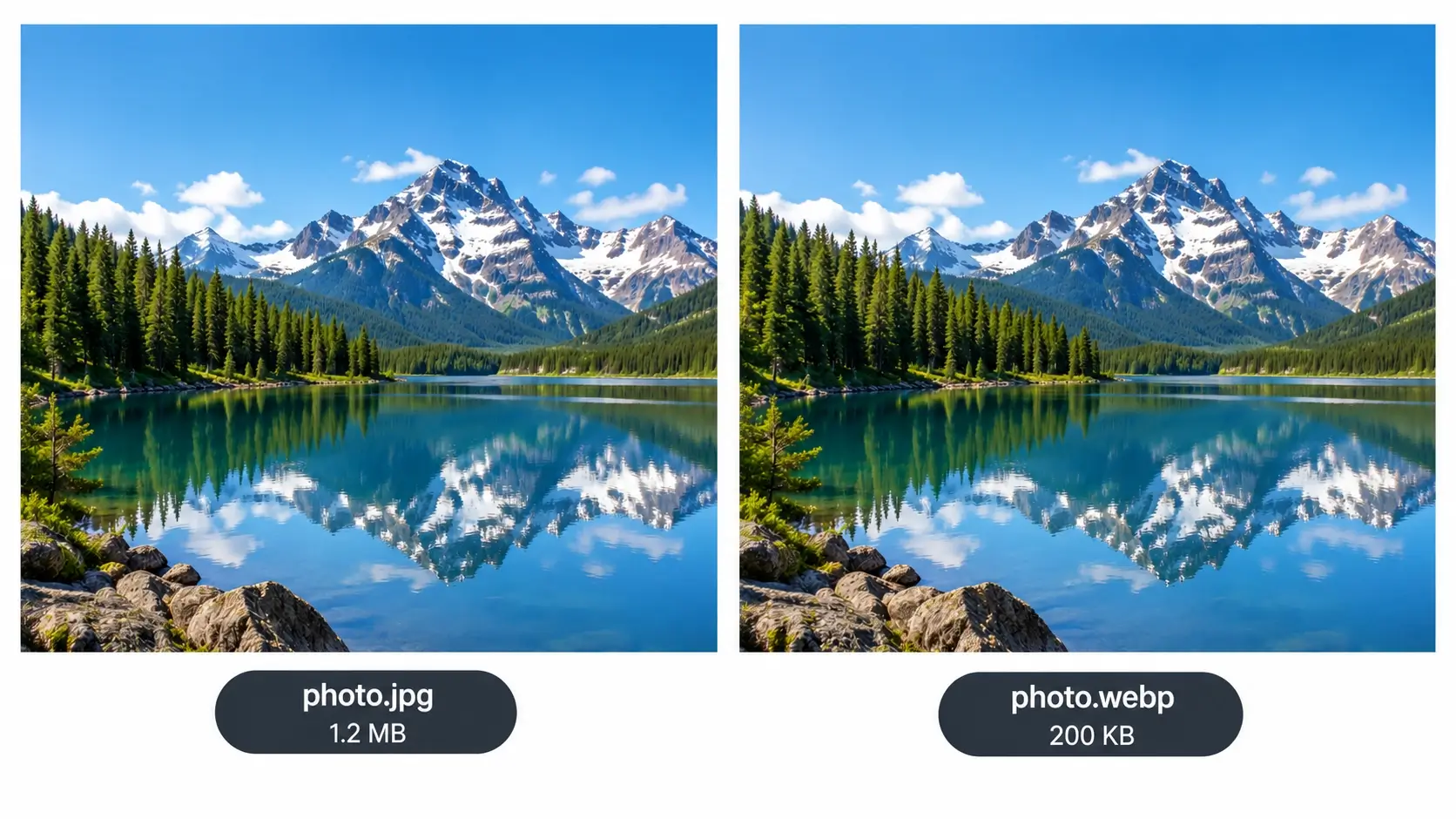
If you have ever run your website through a speed test, you have probably seen a message like "Serve images in next-gen formats". That message is almost always talking about WebP. It is a modern image format created to make pictures smaller without making them look worse, and it is now supported by all major browsers.
The good news is that you do not need special software or technical skills to use it. In this guide, you will learn what WebP is, why it is worth using, and exactly how to convert JPG, JPEG and PNG images to WebP for free, in bulk, without uploading your files anywhere. You can follow along with our free Image to WebP converter, which runs directly in your browser.
What is WebP?
WebP is an image format developed by Google. It was designed for the web, which means its main goal is to deliver good-looking images at smaller file sizes. A smaller file loads faster, uses less mobile data and takes less storage space.
One of the most useful things about WebP is that it is flexible. A single format can do the jobs of several older ones:
- Lossy compression, similar to JPG, for photos where a small, invisible loss in detail is acceptable.
- Lossless compression, similar to PNG, for graphics where you want every pixel preserved.
- Transparency, so logos and cut-out product images can have see-through backgrounds, just like PNG.
- Animation, so it can replace animated GIFs with much smaller files.
According to Google's own published comparisons, WebP images are often noticeably smaller than equivalent JPG or PNG files, commonly by a quarter or more, while looking very similar. The exact saving depends on the image, but for photo-heavy websites the difference adds up quickly.
Why convert your images to WebP?
1. Faster page loading
Images are usually the heaviest part of a web page. Reducing their size is one of the simplest ways to make a site feel faster. Visitors are far less patient than they used to be, and a slow page makes people leave before they see your content.
2. Better experience on mobile
Many visitors browse on phones with limited data or slower connections. Lighter images save their data and load properly even when the signal is weak.
3. Support for page speed and SEO
Google looks at how quickly pages load for real users. Faster images help improve metrics such as Largest Contentful Paint, which is often an image on the page. Page speed is only one of many ranking factors, so WebP will not magically push a weak page to the top, but it removes a common performance problem. We explain this in more detail in our guide on WebP and SEO.
4. Lower hosting and bandwidth use
If your site gets steady traffic, lighter images mean less data transferred every month. That can matter if you pay for bandwidth or if your hosting plan has limits.
5. Smaller backups and faster uploads
A folder of WebP files is lighter to store, share and upload to a content management system or online store.
Before you convert: a few quick preparations
Keep your originals
Always keep the original JPG or PNG files in a separate folder. WebP is excellent for publishing, but your originals are your master copies. You may need them later for printing, editing or exporting to a platform that does not accept WebP.
Start from the best quality you have
Converting from a high-quality source gives you a cleaner result. If your image has already been compressed several times, converting it again cannot restore lost detail.
Resize oversized images first
If your photo is 6000 pixels wide but will only be displayed at 1200 pixels, resize it first. Format conversion helps, but correct dimensions often save even more space.
Add watermarks before converting
If you plan to brand your images, do it before the final conversion, so the watermark is part of the optimized file. The free Bulk Watermark Adder can add a text or logo watermark to a whole folder first, and then you can convert the results to WebP. Our guide on adding a watermark to multiple photos at once covers this step in detail.
How to convert JPG and PNG to WebP: step by step
Here is the simple process using the Image to WebP converter from Instant Convert Tools. Everything happens in your browser, so your images are not uploaded to a server, and you do not need to create an account.
Step 1: Open the converter
Go to the Image to WebP converter on your phone, tablet or computer. There is nothing to download or install.
Step 2: Upload your images
You can add images in three ways:
- Drag and drop your files into the upload area.
- Click to browse and select one or many files.
- Upload a folder to convert everything inside it at once, which is the fastest option for large batches.
The tool accepts PNG, JPG and JPEG files.
Step 3: Convert
Click the convert button. The tool turns each of your images into WebP right inside your browser. For a small batch this takes only a few seconds.
Step 4: Download
When the conversion is finished, your WebP images appear in a results area. You can download them one at a time, or download everything together as a ZIP file. For more than a handful of files, the ZIP option is much more convenient.
Step 5: Compare the file sizes
Right-click your original and your WebP file, and check the sizes. For most photos you will see a clear reduction. Open both versions and zoom in a little to make sure the quality looks right for your purpose. If you are not happy with the result, go back to your original file and try again from the best source you have.
How to use WebP images on your website
Converting is only the first half of the job. The second half is making sure the images are used well.
On a regular HTML site
You can use WebP exactly like any other image:
<img src="product-photo.webp" alt="Blue leather wallet, front view" width="1200" height="800">
Always include a useful alt description and the width and height attributes. Setting dimensions reserves space on the page, which prevents the layout from jumping while images load.
With a fallback for very old browsers
Almost every modern browser supports WebP. If you still want a safety net for older software, use the picture element:
<picture>
  <source srcset="product-photo.webp" type="image/webp">
  <img src="product-photo.jpg" alt="Blue leather wallet, front view" width="1200" height="800">
</picture>
The browser uses the WebP version when it can and falls back to the JPG when it cannot.
On WordPress
Recent versions of WordPress accept WebP uploads directly in the media library. Upload your converted files as usual and add alt text. If you use an older version or a restrictive theme, check your media settings first.
On Shopify and other store platforms
Many store platforms already optimize and serve images in modern formats automatically. Even so, uploading clean, properly sized images helps. Check your platform's documentation to see what formats it accepts for product photos and how it handles them.
In blogs and page builders
Most modern page builders and blogging platforms accept WebP. If an upload is rejected, try the same image as JPG and check the platform's supported formats.
When you should not use WebP
WebP is great for the web, but it is not always the right choice.
- Platforms that require a specific format. Some social media apps, marketplaces and email services still prefer JPG or PNG for uploads. Keep a JPG or PNG copy for those.
- Printing. Print shops usually want high-quality JPG, PNG or TIFF files, not web-optimized images.
- Editing masters. Keep your original files for future editing. Do not use compressed web copies as your only source.
- Sharing with people using older software. Newer versions of most editors open WebP, but older programs may not. If you are sending a file to a client, ask which formats they can open.
A sensible approach is to keep two folders: one with your originals and one with web-ready WebP versions.
Converting PDF pages and mixed documents
Sometimes the images you need are not separate files but pages inside a PDF, such as a brochure, a lookbook or a price list. In that case, use the PDF to WebP converter to turn pages into lightweight images that you can place on your website or share on social media.
The reverse is also useful. If you need to send several images as a single document, the Image to PDF converter combines them into one file, and the Merge PDF tool joins several PDFs together.
A simple workflow for blogs and online stores
- Collect your photos in one folder and keep a backup of the originals.
- Resize them to the largest size they will actually be shown at.
- Add a watermark if needed, using the bulk watermark tool.
- Convert to WebP with the Image to WebP converter, using the folder upload for large batches.
- Rename files with clear, descriptive names, such as handmade-soy-candle-lavender.webp, instead of IMG_2048.webp.
- Upload to your site and write helpful alt text for every image.
- Test your page speed before and after to see the difference.
Common problems and how to fix them
The WebP file looks blurry
Start again from the original, highest-quality version of the image. A photo that has already been compressed many times will not improve when converted. Also make sure the image is not being stretched larger than its actual size on the page.
The WebP file is not much smaller
If the original was already heavily compressed or very small, there may not be much room to save. Large dimensions are often the real issue, so resize first.
My PNG with a transparent background lost its transparency
WebP supports transparency, so this normally should not happen. Preview the converted file on a colored background to make sure it is not simply displayed on white, and compare it against the original.
My platform will not accept the WebP file
Keep a JPG or PNG version for that platform. Use WebP for your own website, where you control the format.
The page slows down during a large batch
Because the conversion happens on your own device, very large batches use your phone's or computer's memory. Split the work into smaller groups of 50 to 100 images and convert each group separately.
I cannot open the WebP file in my old software
Update the program, open the file in a modern browser to check it, or keep a JPG or PNG copy for that software.
Is it safe to convert images online?
It depends on the tool. Some websites upload your images to a server, process them and send them back, which means your files travel across the internet and might be stored for a while. That is not ideal for client photos, product launches or personal pictures.
Our Image to WebP converter works in your browser, so the conversion happens on your own device and your files stay with you. There is no signup, and nothing needs to be installed.
Frequently asked questions
Is the Image to WebP converter free?
Yes. You can convert images without paying and without creating an account.
Which formats can I convert to WebP?
The tool accepts PNG, JPG and JPEG images.
Can I convert many images at once?
Yes. You can select multiple files, or upload an entire folder, and download the results one by one or as a single ZIP file.
Will converting to WebP reduce my image quality?
For most photos, the visual difference is very small, while the file size becomes noticeably smaller. Always compare the result with your original, especially for images with fine detail, and keep your originals safe.
Do all browsers support WebP?
All major modern browsers support WebP. If you need to support very old software, use the picture element with a JPG or PNG fallback.
Does WebP help SEO?
It can help indirectly by making pages load faster, which supports a better user experience. It is not a shortcut to higher rankings on its own, so combine it with good content, correct image sizes and useful alt text.
Should I delete my original JPG and PNG files?
No. Keep them as backups. You may need them for editing, printing or platforms that do not accept WebP.
Does it work on mobile?
Yes. It runs in your mobile browser, so you can convert images from your phone.
Are my images uploaded to a server?
No. The conversion happens in your browser on your own device.
Final thoughts
Converting your images to WebP is one of the easiest and most effective ways to make a website lighter and faster. The process is simple: upload your images or a whole folder, convert them, download the results, and use them on your site with good file names and alt text. Keep your originals safe, resize before converting, and test your results.
Ready to try it? Open the free Image to WebP converter and convert your first batch in seconds. If you want to understand how formats compare, read our guide on WebP vs JPG vs PNG, and find more practical tips on the Instant Convert Tools blog.