
How to Add a Watermark to Multiple Photos at Once (Free Step-by-Step Guide)
Published on 27 Oct 2026
Watermarking photos one by one wastes hours. Learn how to add a text or logo watermark to dozens or hundreds of images in one go, for free, right in your browser.
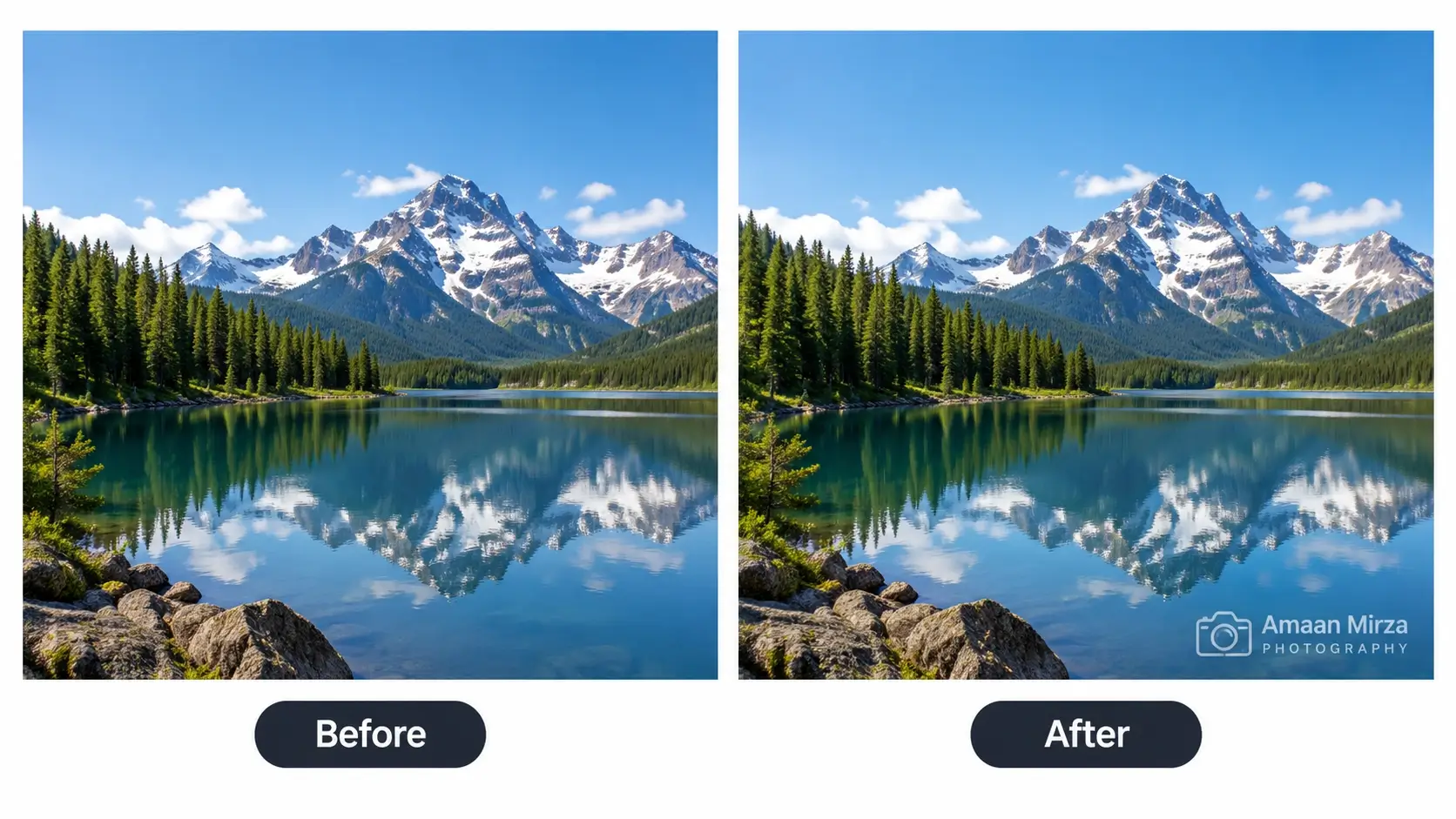
If you take a lot of photos, sooner or later you will want to put your name or logo on them. Maybe you are a photographer sharing a portfolio, a seller posting product pictures on Instagram, or a designer sending preview images to a client. Whatever the reason, the problem is the same: adding a watermark to one picture takes a minute, but adding it to two hundred pictures can eat up an entire afternoon.
The good news is that you do not have to do it one image at a time. A bulk watermark tool lets you set up your watermark once and apply it to every photo in a single click. In this guide, you will learn exactly how to add a watermark to multiple photos at once, which settings work best, how to avoid the most common mistakes, and what to do with your images afterwards. You can follow along using our free bulk watermark adder, which works directly in your browser with no signup.
Why adding watermarks one by one does not work
Most people start by opening each image in an editing app, placing a logo, adjusting the size, exporting, and then repeating the whole process again and again. This approach has three problems.
It is slow. Even if each photo takes only forty-five seconds, a batch of 150 images costs you almost two hours. That is time you could spend shooting, editing or selling.
It is inconsistent. When you place a watermark by hand, it is almost impossible to put it in exactly the same position, at exactly the same size and opacity, every single time. After the fortieth image, your logo is a few pixels off, a little bigger, a little fainter. The result looks careless, especially when the photos appear side by side on a website or a catalogue.
It is easy to forget. When you are tired, one or two images slip through without a watermark, and those are usually the ones that get shared and reused by someone else.
Bulk watermarking solves all three problems. You choose the settings once, preview the result, and the same watermark is applied to every image in the batch. Same size, same position, same look.
Before you start: what to prepare
A few minutes of preparation will save you from redoing the whole batch later.
1. Gather your photos in one folder
Put all the images you want to watermark into a single folder on your phone or computer. This makes it much easier to select them together. The tool supports PNG, JPG, JPEG and WEBP files, so you do not need to convert anything before you begin.
2. Keep your originals safe
Never watermark your only copy of a photo. Create a separate folder for the watermarked versions and keep the clean originals somewhere else. Once a watermark is burned into an image, you cannot remove it again, so your originals are your backup.
3. Decide between text and logo
You can add either a text watermark, such as your name, brand or website address, or a logo watermark, which is an image file. If you do not have a logo yet, text is a perfectly good choice. If you already have a logo, a transparent PNG gives the cleanest result. We compare both options in detail in our guide on text watermark vs logo watermark.
4. Think about where the photos will be used
A photo for a Facebook ad, a website gallery and a WhatsApp catalogue may all need slightly different watermark placement. Knowing the destination helps you decide how large and how visible the watermark should be.
How to add a watermark to multiple photos: step by step
Here is the full process using the Bulk Watermark Adder on Instant Convert Tools. It works on a phone, tablet or computer, and your images never leave your device because all the processing happens locally in your browser.
Step 1: Upload your images
Open the tool and either drag and drop your photos into the upload area or click to browse. You have two choices here: Upload Image(s) lets you pick individual files, while Upload Folder loads every supported image inside a folder at once. If you have a large shoot sorted into folders, the folder option is the fastest way to begin.
After uploading, you will see a list of selected files with a count. Check that the number matches what you expected. If you added something by mistake, you can clear the list and start again.
Step 2: Choose a text or logo watermark
In the watermark settings, you will find two modes.
- Text watermark: type the words you want to appear on every photo, then choose the font size and color.
- Logo or image watermark: upload your logo file and set its size as a percentage of the image width.
For a first test, a logo size of around 15 to 20 percent of the image width is a good starting point. For text, a medium font size is usually enough, and you can adjust it after you see the preview.
Step 3: Set the position
The tool gives you nine positions arranged like a grid: top left, top center, top right, middle left, center, middle right, bottom left, bottom center and bottom right. Pick the one that suits your photos.
- Bottom right or bottom left is the classic choice. It looks professional and rarely covers the subject.
- Center offers the strongest protection but is more noticeable, so use it when the image really needs it, for example in client previews.
- Top corners work well when the bottom of your photos usually has the main subject or product.
Step 4: Adjust opacity, rotation and color
This is where your watermark gets its final look.
Opacity controls how transparent the watermark is. A very solid watermark can distract from the photo, while a very faint one is easy to miss or crop out. Most people settle between 40 and 70 percent.
Rotation lets you tilt the watermark. A slight diagonal angle is a popular choice for centered watermarks because it is harder to crop out and looks deliberate.
Color applies to text watermarks. White works on dark or medium photos, and dark gray or black works on bright ones. Always choose a color that contrasts with the area where the watermark sits.
Step 5: Check the live preview
Before you apply anything to the whole batch, look at the live preview on one of your images. This is the most important step, so do not skip it. Ask yourself:
- Can I read or recognize the watermark clearly?
- Does it cover an important part of the photo, such as a face or a product label?
- Does it still look right on a bright background? On a dark one?
If something looks off, change the setting and check again. It costs you ten seconds now instead of ten minutes later.
Step 6: Apply the watermark to all images
When you are happy with the preview, click Apply Watermark to All Images. A progress indicator shows how far along the processing is. Because the work happens on your own device, the speed depends on how many photos you have and how powerful your phone or computer is. A batch of a few dozen images usually finishes quickly.
Step 7: Download your watermarked photos
Once processing is complete, your watermarked images appear in a results section. You can download them one by one, or click Download All as ZIP to get everything in a single file. The ZIP option is much more convenient for large batches, since you only need to unzip it once and move the files into your folder.
Recommended settings for common situations
There is no single perfect watermark, but these starting points work well for most people. Treat them as a base and adjust after looking at the preview.
- Product photos for an online store: small logo in a corner, around 12 to 18 percent of the width, opacity 50 to 60 percent. The goal is to brand the image without hurting the product.
- Photography portfolio: small text or logo in the bottom right, opacity 40 to 60 percent. Keep it elegant so the work stays the focus.
- Client proofs and previews: larger watermark in the center, slightly rotated, opacity 30 to 50 percent. This discourages people from using the preview instead of paying for the final photos.
- Social media posts: small logo or handle in a corner, opacity 60 to 80 percent, because images are viewed small on phones and a faint mark may disappear.
- Real estate photos: agency logo in a bottom corner at moderate size, so the property stays the star.
- Documents and certificates saved as images: diagonal center text such as "COPY" or "SAMPLE" at low opacity.
Common problems and how to fix them
The watermark is hard to see
Increase the opacity, make the logo or text larger, or change the color for better contrast. If your photos are mixed, some bright and some dark, consider splitting them into two batches and using a light watermark for the dark group and a dark watermark for the bright group.
The watermark covers the subject
Move it to a different position. If your photos have the subject in different places, a corner is the safest choice. You can also reduce the size slightly.
My logo has a white box around it
This happens when your logo file has a solid background. Use a PNG with a transparent background instead. Most design tools can export your logo this way.
The logo looks too big on some photos and too small on others
The logo size is based on the width of each image, so portrait and landscape photos can look different. If you have a mix of both, process them in separate batches and tune the size for each.
Processing feels slow or the page lags
Very large batches of high-resolution photos need a lot of memory, especially on older phones. Try splitting your photos into groups of 50 to 100 images, process each group, and download them separately.
The watermark looks blurry
Use a high-resolution logo. If you upload a small, low-quality image and the tool scales it up, it will look soft. A logo of at least 500 pixels wide usually gives good results.
Is it safe to watermark photos online?
This is a fair question, especially if your photos are client work or unreleased products. Many online tools upload your images to a server, process them there and send them back. That means your files travel across the internet and may be stored for some time.
The Instant Convert Tools watermark adder works differently. The processing happens inside your browser using your own device, so your images are not uploaded to a server. Nothing is stored, and you do not need an account. For photographers and sellers who handle sensitive or unpublished images, this is a real advantage.
What to do after watermarking your photos
Adding the watermark is only one part of a good image workflow. Here are the next steps that make your photos work better online.
Compress and convert to WebP
Large photos make websites slow, and slow websites lose visitors and rank lower in search. After watermarking, convert your images to the modern WebP format, which keeps good quality at a much smaller file size. Our Image to WebP converter handles PNG and JPG files, so you can finish the whole workflow in one place.
Turn your photos into a PDF catalogue
If you sell products on WhatsApp or send proposals to clients, a single PDF is often easier to share than dozens of separate images. Use the Image to PDF converter to combine your watermarked photos into one document. If you already have several PDFs, such as different product categories, you can join them with the Merge PDF tool.
Send a professional invoice
Once the client chooses their photos or the customer places an order, you will need to bill them. The free Invoice Creator lets you generate a clean invoice in a few minutes, which keeps your branding consistent from the first preview to the final payment.
Name your files clearly
Use clear, descriptive file names such as blue-leather-wallet-front.jpg instead of IMG_4821.jpg. Good names help you stay organized, and they also help search engines understand what your images show.
Limits of watermarks: what to expect
It is worth being honest about what a watermark can and cannot do. A watermark is a deterrent, not a lock. It makes casual copying less attractive and gives your brand exposure every time a photo is shared. However, a determined person with editing skills can sometimes remove or hide a watermark, particularly a small one in a plain corner.
To make removal harder, place the watermark over a busier part of the image rather than a plain area, use a slightly larger size, or choose a diagonal center placement for important previews. For high-value images, also consider sharing only lower-resolution versions publicly. If copyright protection matters to you legally, remember that rules differ from country to country, so check the local requirements for registering and enforcing your rights.
Frequently asked questions
Is the bulk watermark adder really free?
Yes. You can use the tool without paying and without creating an account.
How many photos can I watermark at once?
The tool is built for bulk processing, so you can add many images in a single batch. Since the work is done on your own device, the practical limit depends on your phone or computer. If your device slows down, process smaller groups.
Which image formats are supported?
PNG, JPG, JPEG and WEBP files are supported.
Can I use my own logo?
Yes. Upload your logo, set its size and opacity, and choose where it should appear. A PNG with a transparent background looks best.
Can I add text instead of a logo?
Yes. You can type any text, such as your name, brand or website, and adjust the font size, color, opacity, position and rotation.
Will watermarking reduce my image quality?
The tool applies the watermark on top of your image. For the sharpest results, start with the best-quality original you have. If you need smaller files afterwards, you can compress or convert them separately.
Does it work on mobile?
Yes. It runs in your mobile browser, so there is nothing to install.
Can I download everything at once?
Yes. After processing, use the Download All as ZIP button to save all watermarked images in a single file.
Can I remove a watermark later?
No. A watermark becomes part of the image, so always keep your original files in a separate folder.
Final thoughts
Adding a watermark to multiple photos at once is one of those small changes that saves hours every month and makes your work look more professional. The process is simple: upload your images, choose text or a logo, set the position and opacity, check the preview, apply it to the whole batch and download the results as a ZIP.
Ready to try it? Open the free Bulk Watermark Adder, upload your photos and have your whole batch branded in minutes. If you want to protect product photos in particular, read our guide on how online sellers can protect their product photos, and browse the rest of our blog for more practical tips.