
Meesho Product Image Size and Requirements: What Is Confirmed and What Is Not
Published on 29 Oct 2026
What size should Meesho product photos be? Here is what sellers commonly use, what Meesho has not publicly confirmed, and how to prepare photos for your catalog in a few minutes.
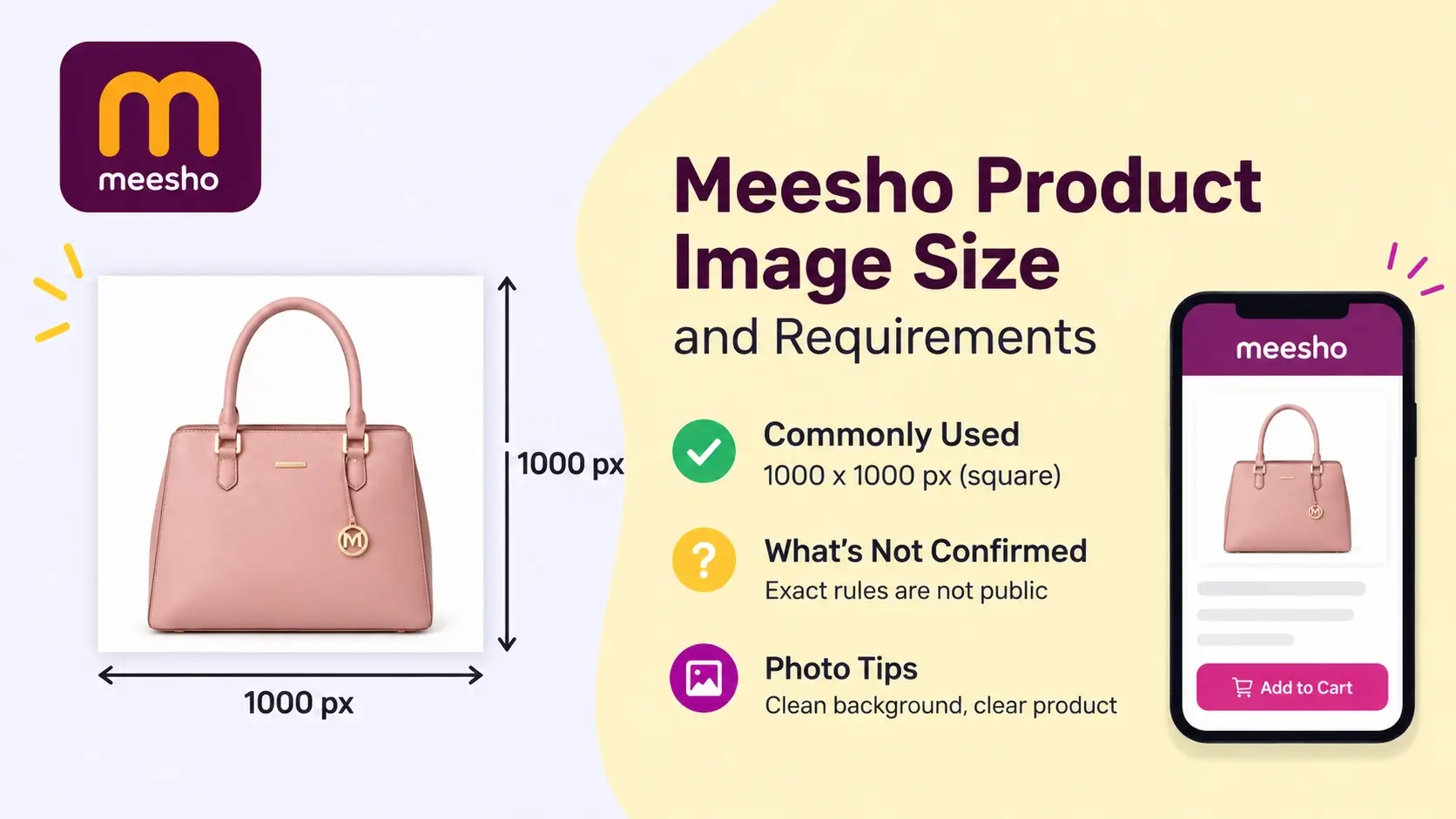
If you are about to upload a catalog on Meesho, one of the first questions is simple: what size should the product photos be? Search for it and you will find many different answers. Some guides say 500 x 500 pixels, others say 1000 x 1000, and a few suggest even more. So which one is right?
Here is the short answer. Most sellers prepare square (1:1) photos, commonly 1000 x 1000 pixels, with a clean background and the product clearly visible. But the exact rules are not printed in one official public page, so the numbers you read online are mostly third-party advice. This guide explains what is commonly used, what is unconfirmed, how to shoot good photos at home, and how to get a whole folder of photos ready quickly with our free marketplace image resizer.
Last updated: October 30, 2026. Marketplace rules change, so always confirm the final numbers inside your own Meesho Supplier Panel before uploading.
Meesho image size: the quick answer
These are the values most seller guides mention. Treat them as a safe starting point, not as official rules.
ItemCommonly quoted valueShapeSquare, 1:1Recommended size1000 x 1000 pxSize for sharp display on phones and WhatsApp1080 x 1080 px (mentioned by some practitioners)Minimum size mentioned by some guides500 x 500 pxFormatJPG or PNGBackgroundPlain, clean, usually white or lightMain imageNo watermark, text overlay or logo (advised by seller guides)
What is confirmed and what is not
This is the part most blog posts skip, and it matters. Meesho keeps its detailed catalog image guidelines inside the Supplier Panel, which needs a login. That means the numbers you see on public websites usually come from sellers, agencies and software companies, not from a public Meesho page. These sources do not always agree, which is why you see a range from 500 to 1500 pixels across different guides.
Here is a practical way to think about it:
- Widely repeated and sensible: square photos, a clear and sharp product, a clean background, no stretched or squeezed images, no heavy filters, and no watermark or text on the main image.
- Often quoted but not guaranteed: exact pixel sizes such as 500, 1000 or 1080, and file size limits.
- Varies by category: the rules for fashion, home and electronics may not be the same, and your catalog template may show category-specific notes.
So the smartest approach is to prepare your photos at 1000 x 1000 px or slightly larger, which is above most of the minimums quoted, and then check your Supplier Panel when you upload. If the panel asks for something different, you can change the numbers and prepare the photos again in a minute.
Why photo quality matters so much on Meesho
Meesho buyers mostly browse on their phones, often on mobile data, and they decide quickly. They scroll through a feed of small thumbnails, and the main image is what makes them stop. Reseller sellers also forward product photos on WhatsApp, so your picture may be seen at a very small size in a chat.
That is why three things matter:
- The product must be easy to recognize at a small size. A square photo where the product fills most of the frame works better than a tiny product in a big empty space.
- Colors must match the real product. Many sellers say that photos with wrong colors lead to disappointed buyers and returns. Do not over-edit or add strong filters.
- The file must load fast. A very heavy image loads slowly on a weak connection.
How many photos should you add?
Sources differ on the exact number of image slots, so check your catalog template. Many seller guides suggest using as many slots as you are allowed, usually somewhere around four to seven good photos. A simple plan looks like this:
- Main photo: the product alone, clean, front view.
- Back or side view: shows the full product.
- Close-up: fabric, print, stitching or material.
- Lifestyle or model photo: shows how it looks when used or worn.
- Size or measurement photo: reduces confusion and return problems.
- Pack contents: if you are selling a set, show everything included.
How to take good Meesho product photos at home
You do not need a studio. A phone and a little care are enough.
1. Use a plain, light background
Place a white bedsheet, chart paper or a plain wall behind the product. For small items, you can put a sheet of white paper on a table and curve it up behind the product. Make sure there are no wrinkles, marks or shadows on the background.
2. Use soft daylight
Shoot near a window in daytime. Avoid direct harsh sun, which creates strong shadows, and avoid yellow room lights, which change the color. If the photo looks yellow or blue, try a different time or place.
3. Keep the phone steady and straight
Hold the phone parallel to the product so lines do not look slanted. A cheap tripod or a stack of books helps. Wipe the lens before shooting, because a dirty lens makes every photo look soft.
4. Shoot at full resolution
Use the normal camera mode and the highest quality setting. Do not send photos through chat apps before using them, because chat apps shrink them. Use the original from your phone gallery.
5. Keep colors true
Skip heavy filters. If you adjust brightness, do it lightly and compare the photo with the real product. Accurate color builds trust.
6. Leave a little space around the product
Do not let the product touch the edge of the frame. A small margin keeps it from being cut off when the photo is resized to a square.
Square crop or white space: which one should you use?
When a photo is not already square, you have two options, and each suits a different kind of photo.
Add white space. Use this for a single product on a plain light background, such as a bag, a pair of shoes, a bottle or a folded garment. The whole product stays visible and the extra space becomes clean white.
Crop to fill the frame. Use this for photos with a model, or any photo with a scene in the background. If you add white space to a wide model photo, you get ugly white bars and a tiny person. Cropping to a square, with the model centered, looks much better.
Our resizer has an Automatic mode that decides between the two for each photo, and you can also choose either mode yourself. It checks whether the photo has a plain light background and picks white space or a crop. It is a smart guess, not perfect, so look at the preview and switch the mode if a photo does not look right. One more thing to remember: a cropped model photo keeps its own background, so it is better as a secondary image than as a main image that needs a plain background.
How to resize Meesho photos in bulk (step by step)
If you have dozens of photos, resizing them one by one is slow. Here is how to do it all at once with the free Marketplace Image Resizer. It works in your browser, so your photos are not uploaded anywhere.
Step 1: Add your photos
Drag and drop your photos, choose files, or pick a whole folder. JPG, PNG and WebP work. If you have iPhone HEIC photos, convert them to JPG first.
Step 2: Choose Meesho
Tap Meesho in the list. You will see the starting values: 1000 x 1000 px, product fill about 80 percent and a maximum file size. You can edit these numbers. If your Supplier Panel shows different rules, type them in here.
Step 3: Choose how photos should fit
Keep Automatic on, or choose "Crop to fill the frame" for model photos and "Keep the whole photo, add white space" for single products. For standing models, set the crop focus to Top so the head is not cut.
Step 4: Prepare and check
Click the prepare button. Each result shows its size, file size, and checks such as whether the background is white and how much of the frame the product fills. Look at a few photos before you move on.
Step 5: Download
Download single photos, or get everything in one ZIP file with a folder for each marketplace. Upload the files to your Supplier Panel.
Common Meesho image problems and how to fix them
The photo looks stretched or squeezed
This happens when a non-square photo is forced into a square. Never stretch a photo. Use white space or a crop instead, so the proportions stay natural.
The image is blurry
Use the original photo, not one forwarded on WhatsApp. If the original is small, retake it closer to the product and at a higher quality setting.
The product looks tiny
The product occupies too little of the frame. Move closer when shooting, or let the tool remove the extra empty border around the product so it fills more of the square.
The background is messy or colored
Reshoot against a plain white sheet. Software can make a light, off-white background pure white, but it cannot magically clean a busy room behind the product.
There is text, a watermark or a logo on the main image
Seller guides advise keeping the main image clean. Save your branded versions for your own website and social media. If you want to protect those, read our guide on protecting product photos with a watermark, and use the bulk watermark adder only for those own-channel copies.
The photo is too dark or too yellow
Retake it in daylight. A slight brightness boost helps, but heavy editing makes colors wrong.
The file is too heavy
The resizer saves each photo at the best quality that fits under your size limit. Lighter files load faster for buyers on slow connections.
Tips for resellers who share on WhatsApp
Many Meesho resellers send product photos to customers on WhatsApp. A few habits make this smoother:
- Send photos as the original files or as a PDF catalog instead of dozens of separate messages. You can build one with the Image to PDF converter, and join several catalogs with the Merge PDF tool.
- Keep file sizes moderate so they send quickly and do not eat the customer's data.
- If you add your own branding to photos you share, make that copy separately and keep the clean version for uploading to Meesho.
Should you use WebP for Meesho?
For a marketplace upload, stick to JPG or PNG, because that is what most listing templates expect. WebP is excellent for your own website, where smaller files make pages load faster. If you also run a website or online store, see our guide on converting JPG and PNG to WebP.
Pre-upload checklist
- Photos are square, around 1000 x 1000 px or larger.
- The product is sharp, centered and easy to see at a small size.
- The background is plain and clean, and the main image has no text, logo or watermark.
- Colors match the real product.
- Nothing is stretched, cut off or pixelated.
- The file size is reasonable for mobile.
- You have checked the numbers in your Supplier Panel.
How Meesho compares with other marketplaces
Each marketplace has its own style and numbers. If you sell on more than one, read our guides on Flipkart image size and requirements and Amazon India main image requirements. The good news is that you can prepare the same folder of photos for all of them in one go.
Frequently asked questions
What is the best image size for Meesho?
Many sellers use a square 1000 x 1000 px image. Some guides mention 1080 x 1080 px, and others mention a lower minimum of 500 x 500 px. Since Meesho keeps its detailed rules in the Supplier Panel, confirm the final numbers there.
Does Meesho accept non-square images?
Seller guides generally recommend square images. If your photo is not square, add white space or crop it, but never stretch it.
Can I use a white background?
A plain white or light background is the most common and safest choice for the main image.
Can I put my logo or watermark on Meesho images?
Seller guides advise against watermarks, text and logos on the main image. Use branded images on your own channels instead.
What file format should I use?
JPG or PNG is the usual choice. JPG is lighter and works well for photos.
Can I take Meesho photos with a normal phone?
Yes. A modern phone camera, daylight and a plain background are enough for good catalog photos.
How many photos can I upload?
The number of slots depends on the catalog template, and guides do not all agree. Use as many good photos as the template allows.
Are my photos uploaded to a server when I use your tool?
No. The resizer runs in your browser, so your photos stay on your device.
Can I prepare photos for Meesho, Flipkart and Amazon at the same time?
Yes. Select all the marketplaces you sell on and download a separate set for each one.
Final thoughts
For Meesho, a clean square photo around 1000 x 1000 px with the product clearly visible is a solid starting point. Remember that the detailed rules live in the Supplier Panel, so use public guides as a starting point and confirm the numbers yourself. Shoot in daylight on a plain background, keep colors true, and avoid text, logos and watermarks on the main image.
When your photos are ready, open the free marketplace image resizer, select Meesho, add your folder and download a ready-to-upload set in a few minutes. For more seller guides, browse the Instant Convert Tools blog.