
How to Convert Text to PDF Online Without Losing Formatting (Complete Guide)
Published on 28 Jul 2026
Learn how to convert text to PDF online without losing formatting. Discover the best methods, formatting tips, page settings, common mistakes, and how to create professional PDF documents in minutes.
Introduction
Creating a PDF from text sounds simple, but many people face the same problem: the formatting changes after conversion. Headings become plain text, spacing disappears, fonts look different, and bullet lists break — leaving the final document looking unprofessional. Whether you're preparing a business proposal, an assignment, a resume, or a report, preserving formatting is just as important as converting the document itself.
PDF was built to solve exactly this problem — it locks a document's layout so it looks identical on every device, operating system, and printer. That's why students, freelancers, businesses, and even government offices rely on PDF for anything they need to view, print, archive, or share.
Most formatting problems come down to one of a handful of causes: plain text with no formatting information, fonts that weren't embedded, manual spacing instead of proper paragraph settings, or a page size chosen without thinking about the reader. Once you know what to look for, avoiding these issues takes only a few extra minutes.
This guide covers the best conversion methods, formatting tips, page settings, common mistakes, and a full FAQ — so every PDF you create with our Text to PDF Converter comes out exactly the way you intended.
What Is a Text to PDF Converter?
A text to PDF converter transforms written content — typed, pasted, or uploaded — into a fixed-layout PDF document. Instead of sharing an editable file that can look different from device to device, you generate a document that renders identically everywhere.
Most modern converters also include a built-in rich text editor, letting you apply headings, bold and italic text, lists, alignment, and font sizes before generating the final PDF. This makes them useful for a wide range of documents, including:
• School and college assignments
• Business proposals and reports
• Resumes, cover letters, and CVs
• Meeting notes and project documentation
• Contracts and agreements
Because most of these tools now run entirely in the browser, there's no need to install a heavy desktop application just to produce a single PDF document — you open the page, format your content, and download the result.
Why Convert Text into PDF?
Consistent Formatting Everywhere
Fonts, spacing, and layout stay exactly where you placed them, regardless of which device or app opens the file.
Universal Compatibility
Nearly every phone, tablet, and computer can open a PDF without extra software, making it the safest option when you don't know what device the recipient will use.
Better Printing and a Professional Look
PDF keeps page breaks and margins consistent across printers, and clients, employers, and universities generally expect documents in this format because it looks polished and is hard to modify by accident.
Reliable Long-Term Storage
Because the PDF format is stable and widely supported, it's one of the safest choices for long-term archiving — documents stay readable for years without running into compatibility issues.
Plain Text vs Rich Text
Plain text (.txt) contains only characters, with no information about fonts, headings, or spacing — so a converter has to guess how to lay it out. Rich text carries that formatting information along with the content, which is why the final PDF looks the way you intended.
Aspect
Plain Text (.txt)
Rich Text / Formatted Content
Font styling
Not supported
Bold, italic, underline supported
Headings
No heading levels
H1, H2, H3 style headings
Lists
Manual dashes or numbers
True bulleted / numbered lists
Best for
Quick notes, code snippets
Reports, resumes, proposals
Best Ways to Convert Text to PDF
Method
Best For
Formatting Control
Online text to PDF tool
Quick documents, no installation
High — rich text editing built in
Word processor export
Longer, already-formatted documents
High, but font substitution possible
Print to PDF (browser/OS)
Converting a webpage or formatted file
Medium — depends on source
Command-line / scripts
Developers, bulk conversion
High, but needs technical knowledge
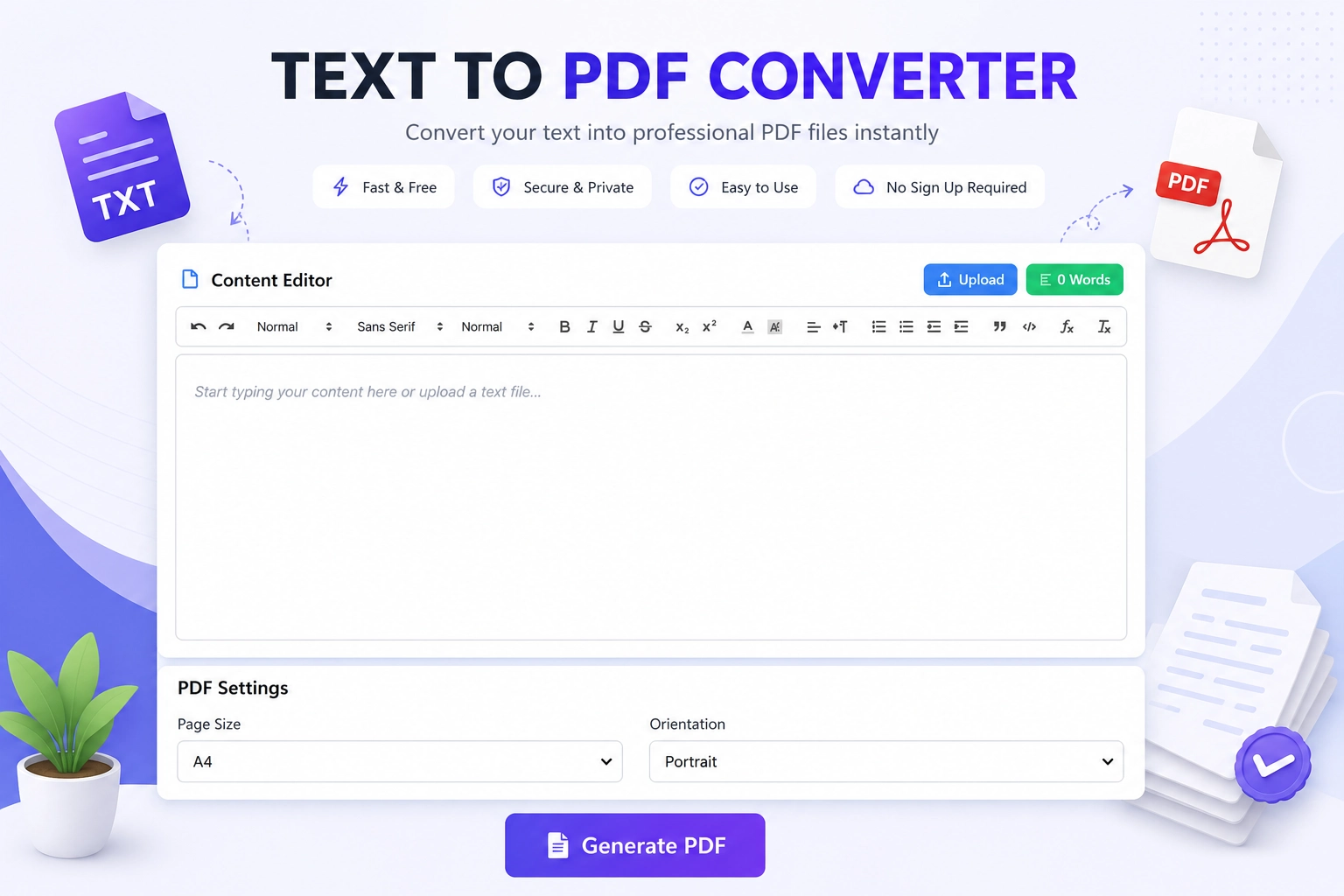
For most everyday users, an online converter with a built-in editor is the fastest, most reliable option. Our own Text to PDF Converter follows this approach — type or paste your content, format it in the editor, choose your page settings, and download a finished PDF in seconds.
If your source material is scanned pages or photos of text instead of typed content, use our Image to PDF tool first to turn them into a document before formatting.
Step-by-Step Guide
Follow these steps in order to make sure your document keeps its intended look from the first line to the last.
1. Start with clean content — remove stray line breaks and duplicate spacing before you convert.
2. Choose a converter with a rich text editor rather than one that only accepts plain .txt.
3. Use real heading styles for section titles instead of just bold, larger text.
4. Apply consistent formatting — one font family, and only two or three font sizes.
5. Set the correct page size and orientation for your audience.
6. Preview the document before downloading to catch spacing or alignment issues.
7. Open the final PDF on a second device to confirm it looks correct everywhere.
If you have several converted pages or documents that belong together, use Merge PDF to combine them into a single file before sharing.
Formatting Tips for a Clean PDF
• Use one consistent font family throughout the document.
• Keep paragraph spacing uniform — avoid mixing single and double spacing.
• Limit yourself to two or three heading levels.
• Use real bullet or numbered lists instead of manual dashes or asterisks.
• Leave reasonable margins so text doesn't look cramped.
• Break long paragraphs into shorter ones for readability.
A4 vs Letter vs Legal
Page Size
Dimensions
Common Region
Typical Use
A4
210 x 297 mm
Most of the world
Business documents, reports, resumes
Letter
8.5 x 11 in
US, Canada
Resumes, letters, forms
Legal
8.5 x 14 in
US (legal/government)
Contracts, legal agreements
Business documents like invoices often need this same attention to page size and layout — our Invoice Creator applies these same formatting principles automatically so every invoice you generate prints cleanly.
Portrait vs Landscape
Portrait is the standard choice for almost all text-based documents — reports, resumes, and letters all read naturally in portrait. Landscape works better for wide tables, spreadsheets, or diagrams that would otherwise feel squeezed into a narrow column.
Common Mistakes to Avoid
Relying on Non-Embedded Fonts
If a font isn't embedded during conversion, the viewer's device substitutes a different one, which can shift spacing and line breaks throughout the document.
Using Manual Spacing Instead of Paragraph Settings
Pressing enter multiple times to create space often produces inconsistent gaps once converted. Paragraph spacing settings give far more reliable results.
Skipping the Preview Step
Skipping the preview is one of the most common reasons people end up re-editing and re-downloading a document multiple times.
Choosing the Wrong Page Size
Sending a Letter-sized document to a region that expects A4 (or the reverse) can cause printing issues, such as content being cut off near the margins.
Overcomplicating the Formatting
Using too many fonts, colors, or heading styles makes a document look cluttered rather than professional. Simplicity is almost always the safer choice.
Ignoring Page Breaks in Longer Documents
Without deliberate page breaks, a heading can end up stranded alone at the bottom of a page while its content starts on the next one, which looks unpolished in reports and proposals.
Converting Tables Without Checking Column Widths
Wide tables can overflow the page after conversion if column widths aren't checked beforehand, especially when moving to a fixed page size like A4 or Letter.
Privacy and Security Considerations
• Prefer tools that process your document in the browser rather than storing it long-term on a server.
• Avoid pasting highly sensitive data, like passwords or account numbers, into any online tool.
• Use a password-protected PDF for especially sensitive documents such as contracts, where supported.
If you plan to publish converted pages online as images rather than downloadable files, our PDF to WEBP tool creates lightweight, web-friendly versions without exposing the original editable file.
Frequently Asked Questions
1. Can I convert text to PDF for free?
Yes. Most browser-based text to PDF converters, including basic formatting features, are free to use without any installation.
2. Will my formatting be preserved if I paste text from Word?
In most cases yes, especially with rich text paste support. Complex custom fonts may need to be reapplied manually.
3. Which page size should I choose if I'm not sure where it will be printed?
A4 is the safer global default, since it's the standard size across most of the world outside North America.
4. Why does my font look different after converting?
This usually happens when the original font isn't embedded in the PDF, so the viewer's device substitutes a different one.
5. Can I convert text to PDF on my phone?
Yes, browser-based converters generally work on mobile browsers, so you can convert and download directly from a phone.
6. Should I use portrait or landscape for a resume?
Portrait is the standard and expected orientation for resumes, cover letters, and most text-based documents.
7. Why did my table overflow the page after conversion?
This usually happens when column widths weren't adjusted for the target page size; narrowing columns or switching to landscape usually fixes it.
8. Is it safe to convert confidential documents online?
It can be, as long as you use a tool that processes documents in the browser and is transparent about data retention.
9. What is the ideal font size for a text to PDF document?
11 to 12 points is standard for body text, with slightly larger sizes reserved for headings.
10. Do I need special software to open the converted PDF?
No. PDFs open natively in nearly every modern browser and operating system without additional software.
11. Can I edit a PDF after it has been created?
PDFs are meant to be a fixed final format, so significant edits typically mean going back to the original content and generating a new PDF.
12. Does converting to PDF reduce file size?
Text-based PDFs are generally very small, often smaller than the equivalent formatted word processor document.
Conclusion
Converting text to PDF doesn't have to come with broken formatting, shifted fonts, or misaligned lists. By starting with clean content, using a converter with proper rich text editing, applying consistent formatting, and previewing before you download, you'll get a document that looks exactly the way you intended, every time.
The formatting habits in this guide are the same ones professional writers and editors use, and applying even a few of them noticeably improves the documents you share with clients, employers, and teachers.
Ready to try it yourself? Use our Text to PDF Converter to write, format, and download a professional PDF directly from your browser — then share it instantly using our
WhatsApp Link Generator to send it straight to a client or contact without saving their number first.