
WhatsApp QR Codes on Restaurant Tables: A Practical Setup Guide
Published on 05 Jun 2026
A step-by-step guide for restaurant owners on setting up WhatsApp QR codes on table tents, menus, and counters to streamline customer communication.
WhatsApp QR Codes on Restaurant Tables: A Practical Setup Guide
Picture this: a couple sits down at your restaurant. Before your server even arrives with water, they've already scanned the QR code on the table tent and sent a message asking if the kitchen can make a dish dairy-free. By the time their server arrives, the question is answered, the order is ready, and the experience already feels personal.
That's the quiet power of a WhatsApp QR code on a restaurant table. It's not just a communication shortcut — it's a trust signal that tells guests you're available, responsive, and modern.
Why Table-Level WhatsApp QR Codes Work
The table is where customers spend the most time during a restaurant visit. They look around, check their phones, read the menu twice. A well-placed QR code at this moment connects them to you when they're most engaged.
Unlike a phone number printed on a menu (which requires typing), a QR code requires a single scan. WhatsApp opens instantly with your number ready. The barrier to reach you drops to almost zero.
What You'll Need Before You Start
Setting up a WhatsApp QR code for your restaurant tables is straightforward. Here's what you need:
- A WhatsApp or WhatsApp Business phone number
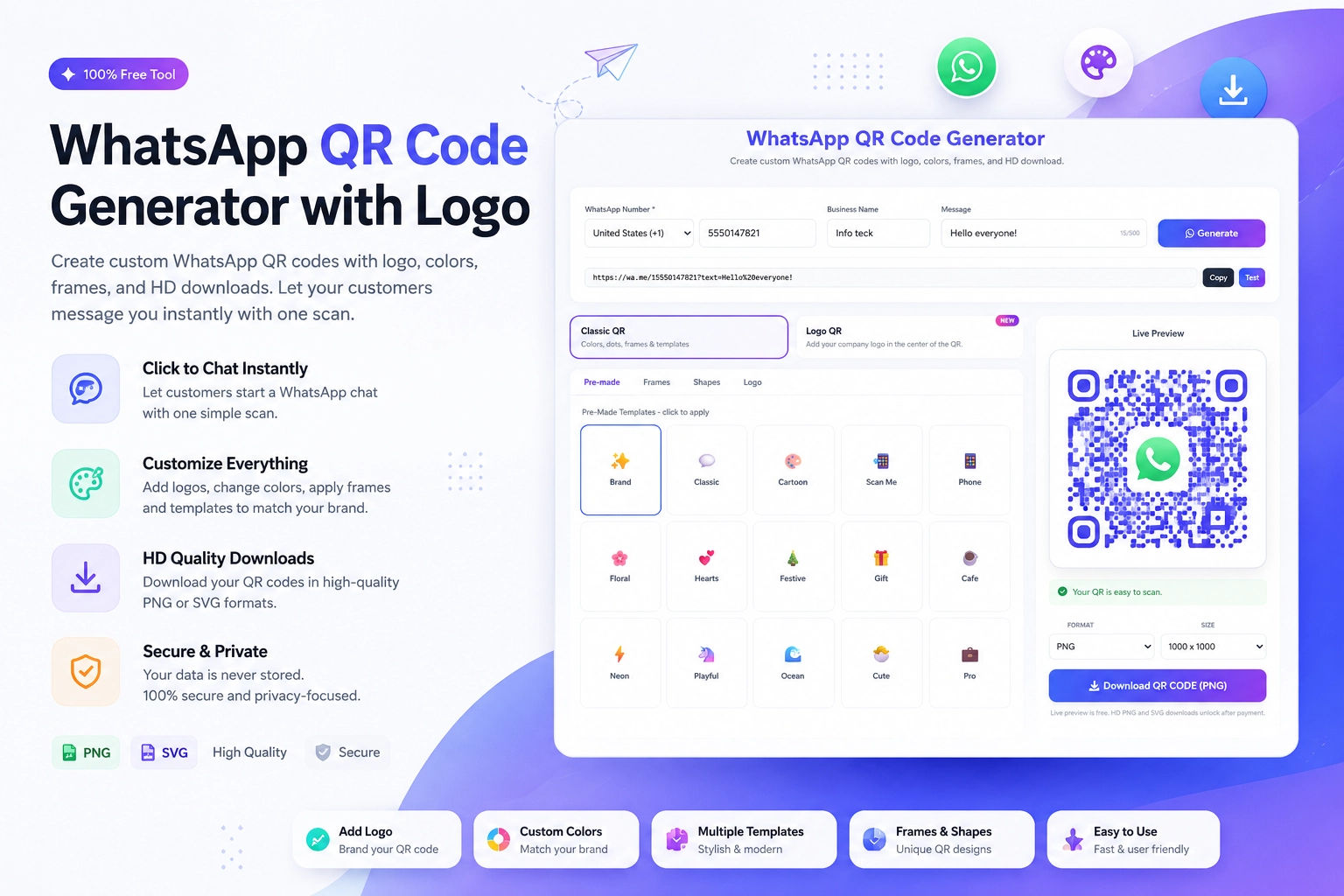
- Access to the free Create WhatsApp QR Code tool at https://instantconverttools.com/whatsapp-qr-code-generator
- A printer (or a local print shop for professional table tent printing)
- Optional: your logo or brand colors for customization
Step-by-Step Setup
Step 1 – Generate Your QR Code
Go to the WhatsApp QR Code Generator and enter your phone number with the country code (e.g., +91 for India, +44 for UK). Add a pre-filled message like "Hi, I'm at your restaurant and have a question about the menu." Download the QR code as a PNG or SVG.
Step 2 – Design Your Table Tent Card
Use Canva, Adobe Express, or any design tool to create a small table tent card. Place the QR code prominently with a clear call to action: "Scan to chat with us on WhatsApp." Include your logo and a short line explaining what they can use it for (reservations, menu queries, feedback).
Step 3 – Print and Laminate
Print on card stock for durability. Lamination extends the life of table materials significantly in a restaurant environment. You can also use a plastic table tent holder and insert a printed card.
Step 4 – Test Before Deploying
Before placing cards on every table, scan your own QR code. Make sure WhatsApp opens correctly on both Android and iPhone. Confirm the pre-filled message loads properly.
Step 5 – Brief Your Staff
Your team should know what the QR code does so they can explain it to curious guests. Train them to mention it proactively: "You can also scan the QR code on the table if you'd like to message us directly."
Design Tips for Table QR Codes
A good-looking QR code is more likely to be scanned. Here are some quick tips:
- Keep the QR code at least 3x3 cm (about 1.2 inches) for reliable scanning
- Use high contrast — dark QR on a light background or vice versa
- Add your brand color to the QR code finder squares using the customization feature in the Generate WhatsApp QR Online tool
- Include the WhatsApp logo or a small "WhatsApp" label so people know where it leads
- Use a short, friendly CTA like "Tap to chat" or "Scan for help"
What Customers Can Use It For
Don't leave it to customers to figure out. Tell them exactly what the QR code is for:
- Making or confirming a reservation
- Asking about allergens or dietary options
- Getting recommendations from the chef or manager
- Sharing feedback or compliments
- Requesting the bill or takeaway packaging
- Joining your WhatsApp broadcast list for offers and specials
Handling the Volume of Inquiries
If your restaurant is busy, you might worry about being overwhelmed with WhatsApp messages. Here are a few smart ways to manage it:
Use WhatsApp Business Quick Replies
Set up saved messages for common questions: menu links, opening hours, allergen info, parking instructions. Answer frequently asked questions in one tap.
Set Business Hours
WhatsApp Business lets you configure your hours. If someone messages outside these times, an automated away message can acknowledge them and set expectations.
Assign Dedicated Staff
Designate one team member (often a host or manager) to handle WhatsApp messages during service. Even five minutes of responsiveness every hour is enough for most restaurants.
Measuring Success
Once your QR codes are live, track basic metrics over 30 days:
- How many reservation requests came through WhatsApp?
- Did any sales or upsells happen via WhatsApp conversation?
- What were the most common questions?
- Did you receive more positive feedback or reviews after following up post-visit?
Create Your Table QR Code Now
The entire setup takes under 10 minutes. Head to the free WhatsApp QR Code Generator at https://instantconverttools.com/whatsapp-qr-code-generator, generate your code, customize it with your colors, and download it. Your restaurant's communication just got a serious upgrade.